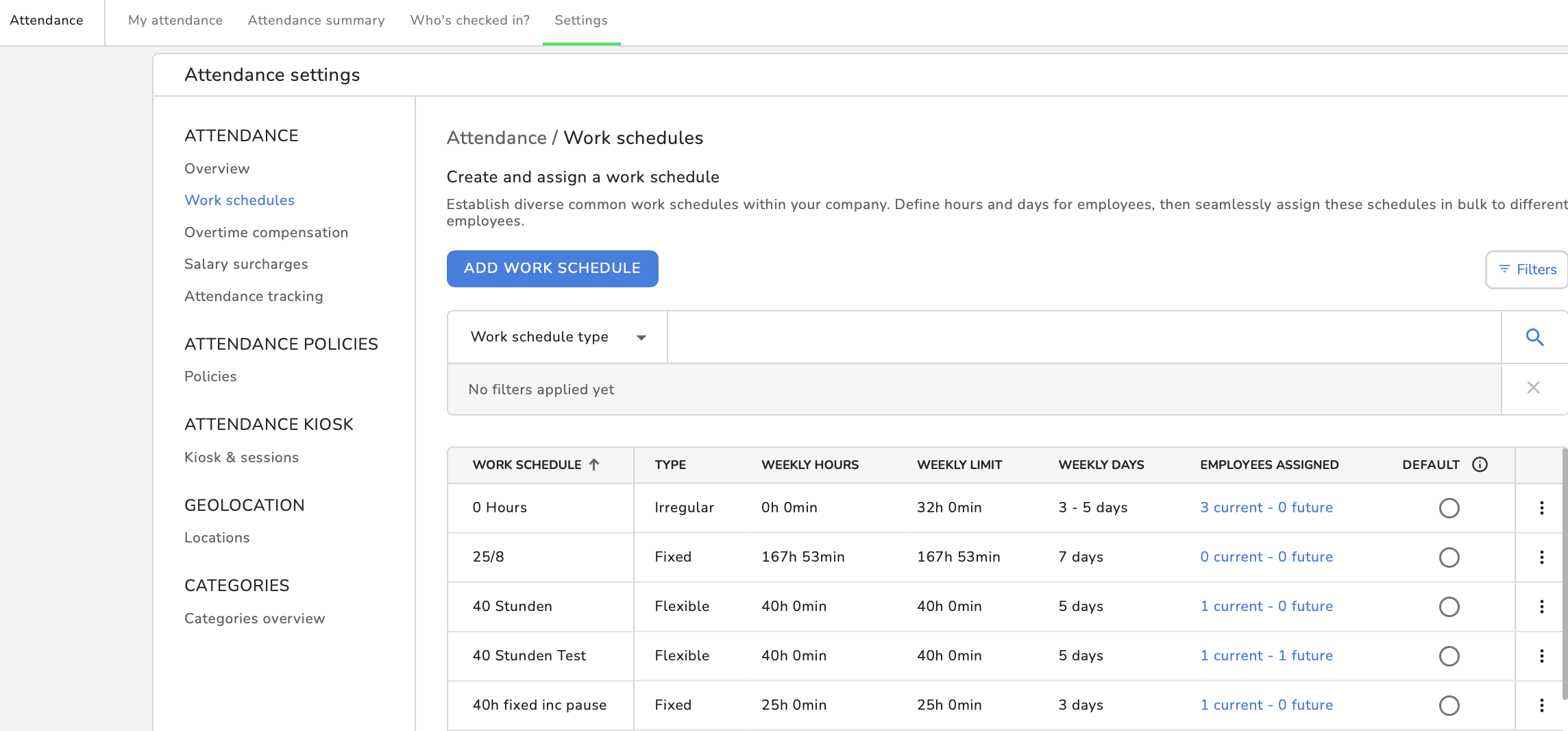
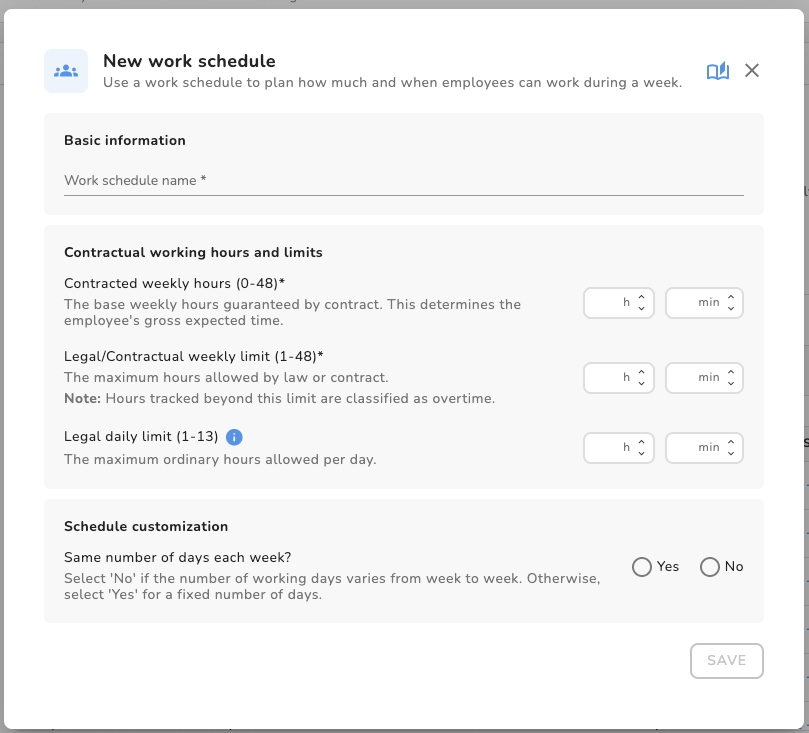
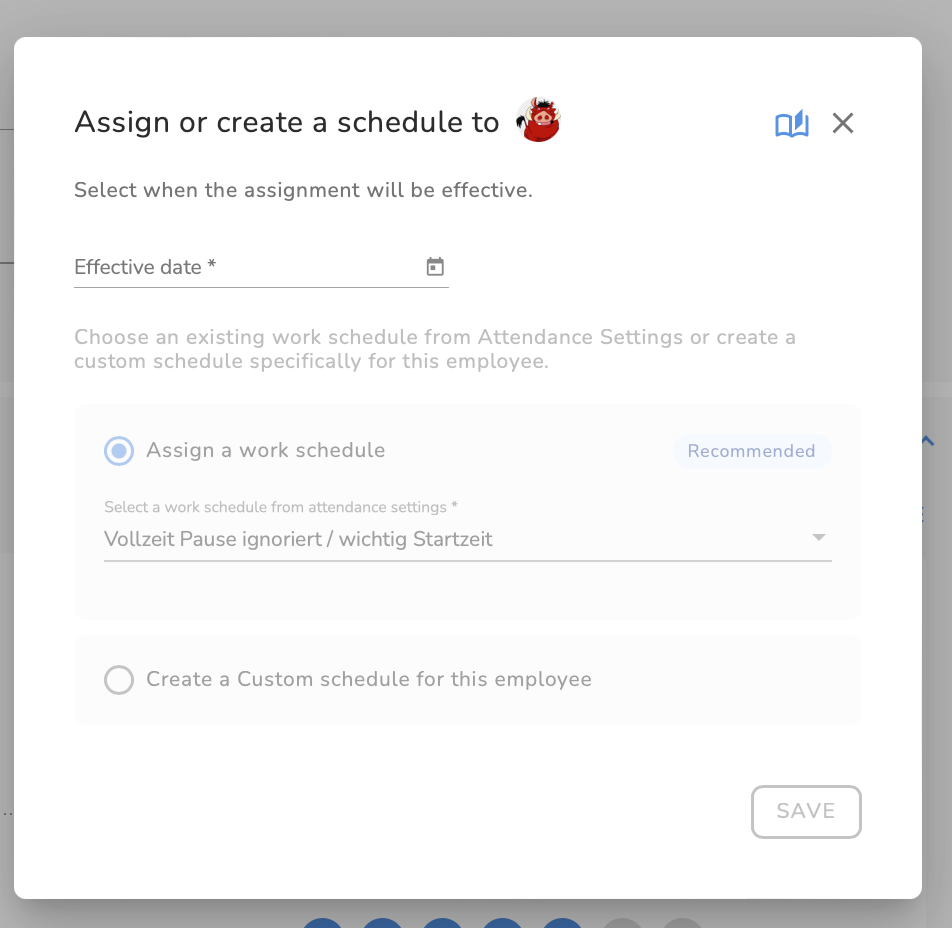
2. Define the minimum working days of a week and the maximum days of a week
Example:
Week 1: 2 working days --> so the minimum days are 2
Week 2: 6 working days --> so the maximum days are 6
This configuration is ideal for shift-based roles or highly variable schedules, such as hospitality or retail.
3. Define the workday window (Mon-Sun) that employee could potentially work.
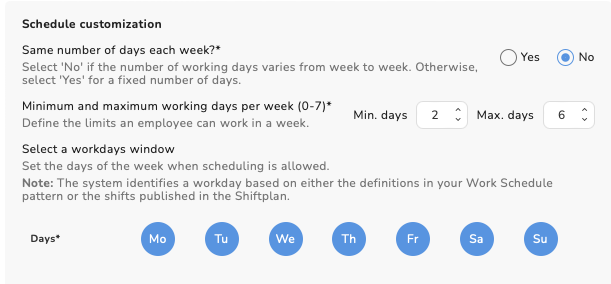

Example: Meet Liza, a hotel bartender who follows a three-week rotating schedule. Her hours shift through a consistent cycle: she works four days during Week A, eases into a shorter three-day stretch for Week B, and ramps up to a six-day week for Week C.
Option: Yes
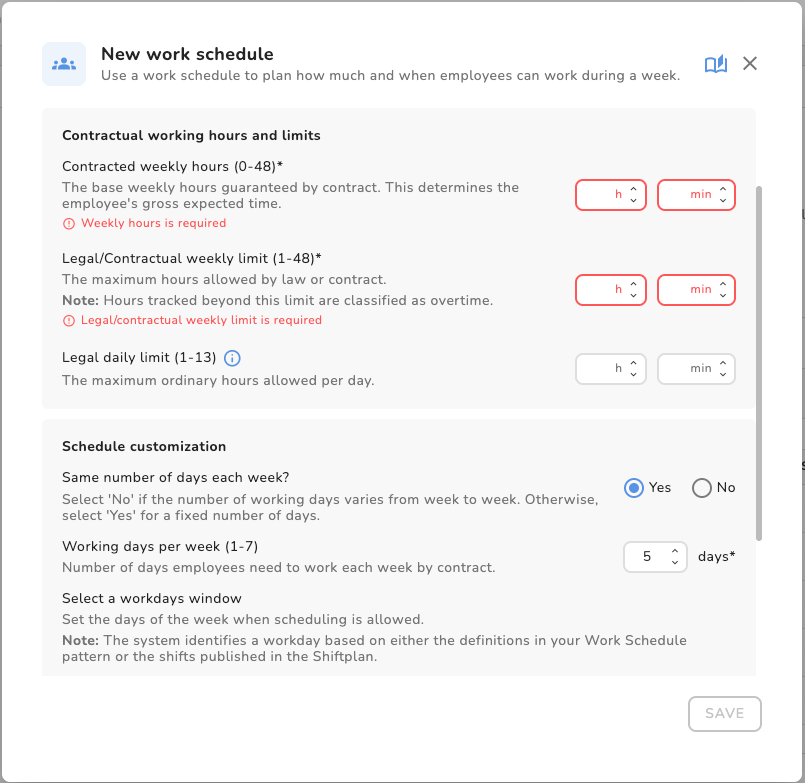
1. Select Yes if the employee always works the same number of days per week.
Example:
5 working days every week
If you select Yes, you must also define:
2. Give the number of working days the employee works each week.
3. Select a workdays window
The range of days in which those working days can occur.
Example:
Working days per week: 4
Working window: Monday–Friday
This configuration provides flexibility in choosing which specific days are worked each week.
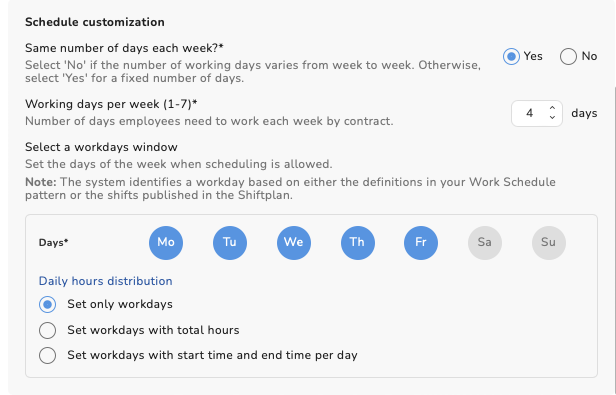

Example: This is Moníca, she is a Product Manager and works always 4-days a week mostly from Monday to Thursday. Once a quarter she works a Friday instead of a Monday.
Step 4. Choose the Daily Hours Distribution Mode
1. Select how daily hours are defined
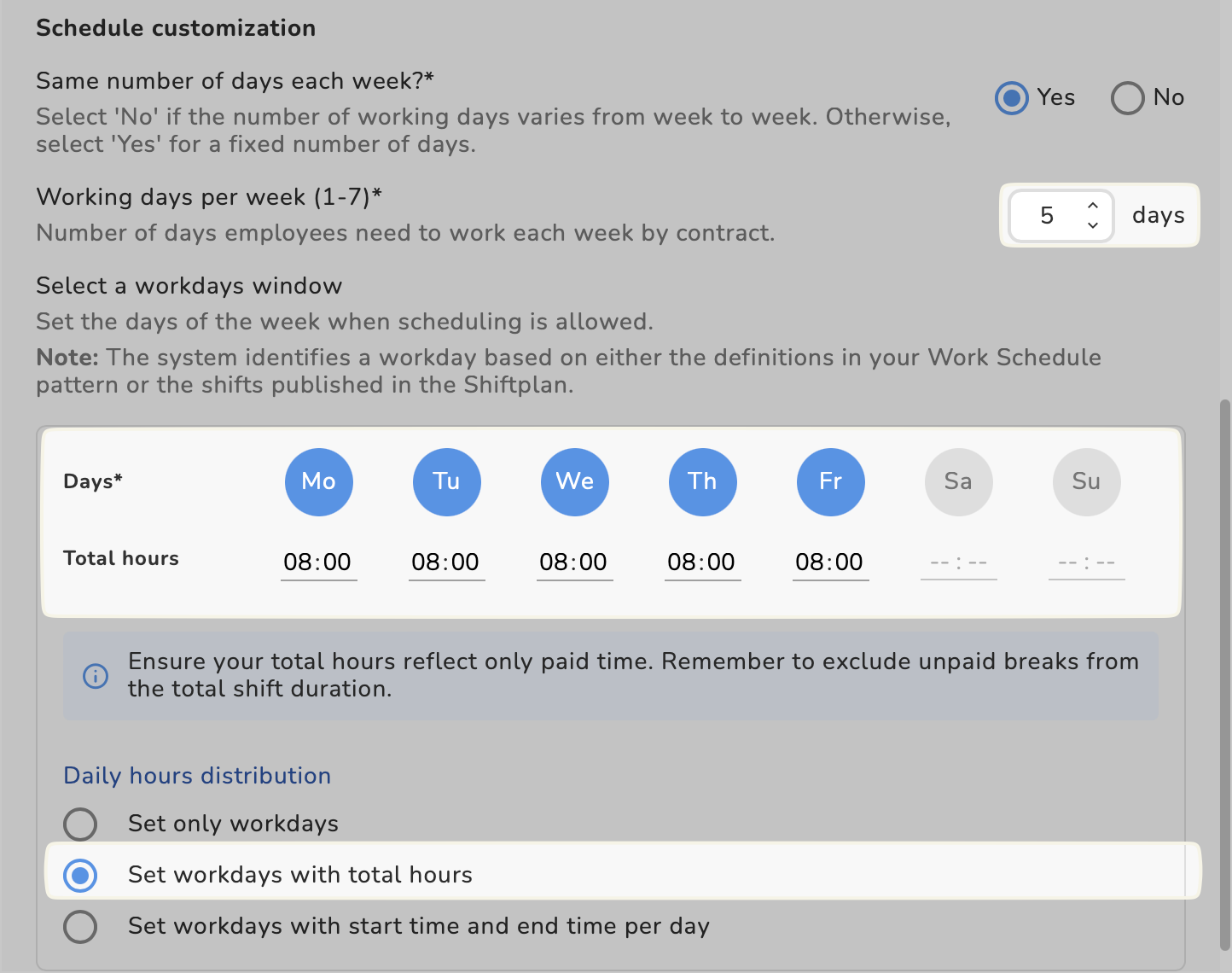
When you selected Yes for the same number of days each week and selected the Days* You can choose different daily hour distribution options.
Option 1: Set working days only
Best for:
The system only tracks the total weekly hours and does not enforce fixed hours per day.
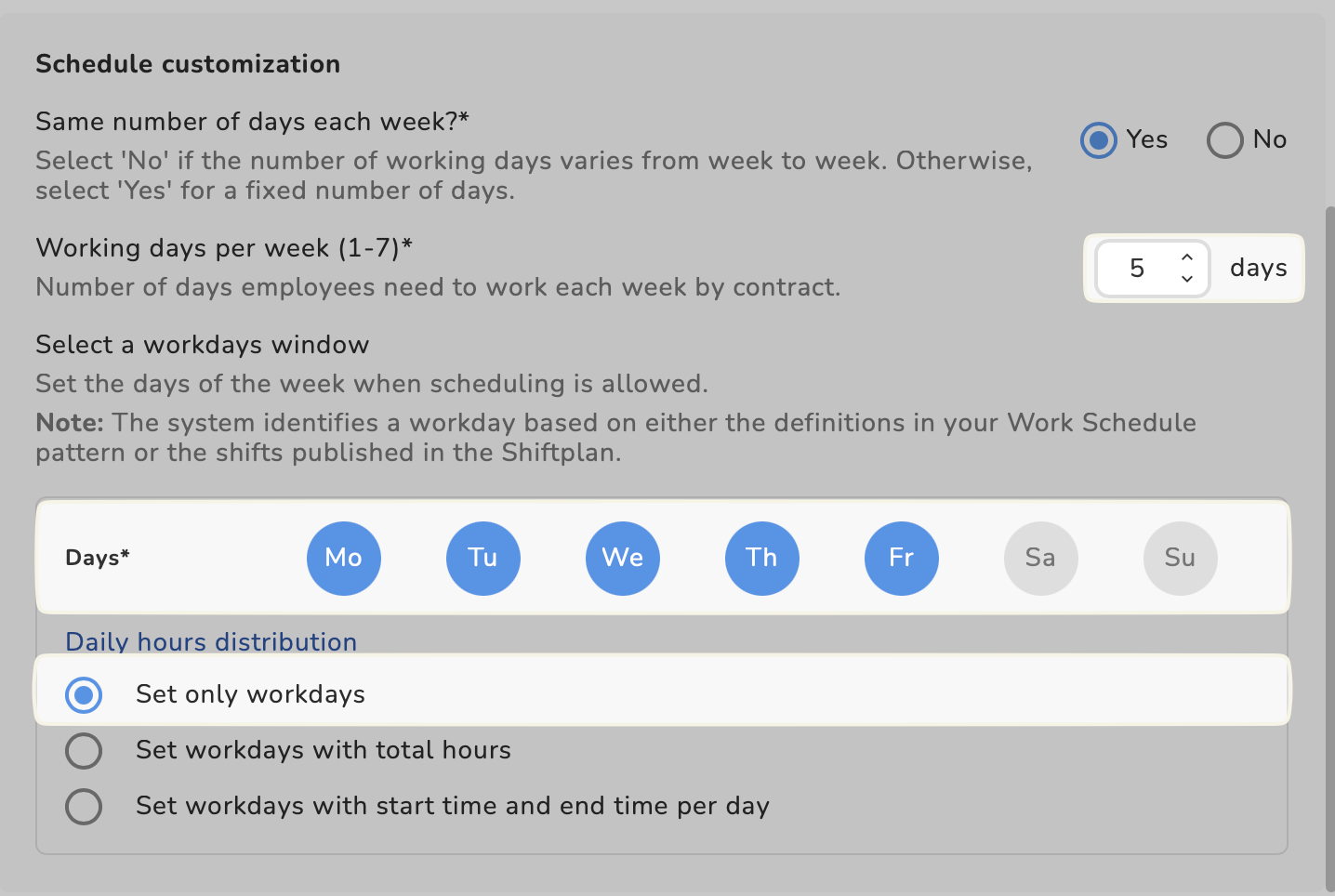
Option 2: Set working days with total hours
Best for employees who work a fixed number of hours per day but do not have fixed start and end times.
Example:
8 hours per day
flexible start time
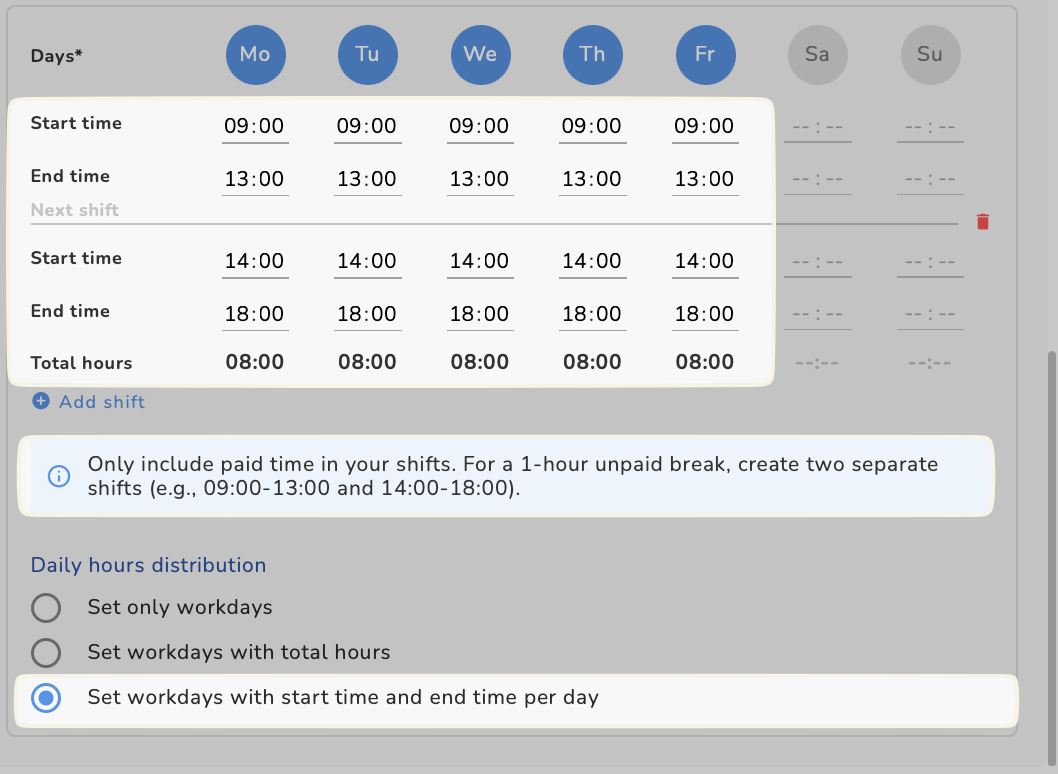
Option 3: Set working days with start and end times
Best for traditional fixed schedules.
Example:
The system records exact start and end times for each working day. See more details below in the section how to handle breaks
6. Configuration Examples
 Example A: Rotating-Days Office Worker like Moníca
Profile
Configuration
Set Same number of days? to Yes.
Enter 5 days for Working days per week.
Select Mon–Sat in the Working window.
Choose Set working days with total hours under Daily Distribution.
Enter 07:00 hours per day.
Result
The system expects 35 hours across 5 days, but the exact workdays can vary within the Monday–Saturday window.
 Example B: High-Variability Restaurant Staff like Liza
Profile
Configuration
Set Same number of days? to No.
Select Mon–Sun in the Working window.
Choose Set working days only under Daily Distribution.
Result
The system focuses on the weekly target of 32 hours.
The hours can be distributed across fewer long shifts or more short shifts, depending on operational needs.
7. Handle Breaks Correctly
Understand how breaks affect working hours
The total hours entered in the schedule should reflect paid working time only.
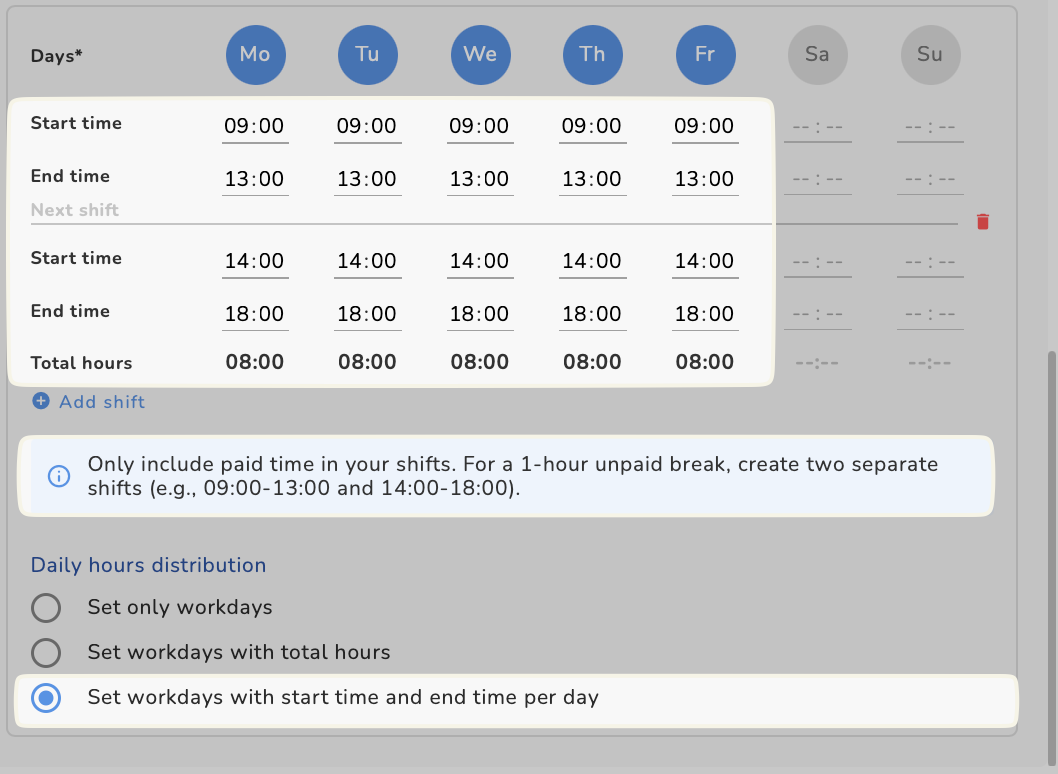
If employees have an unpaid break, you can handle it in two ways:
Option 1: Create two shifts
Example:
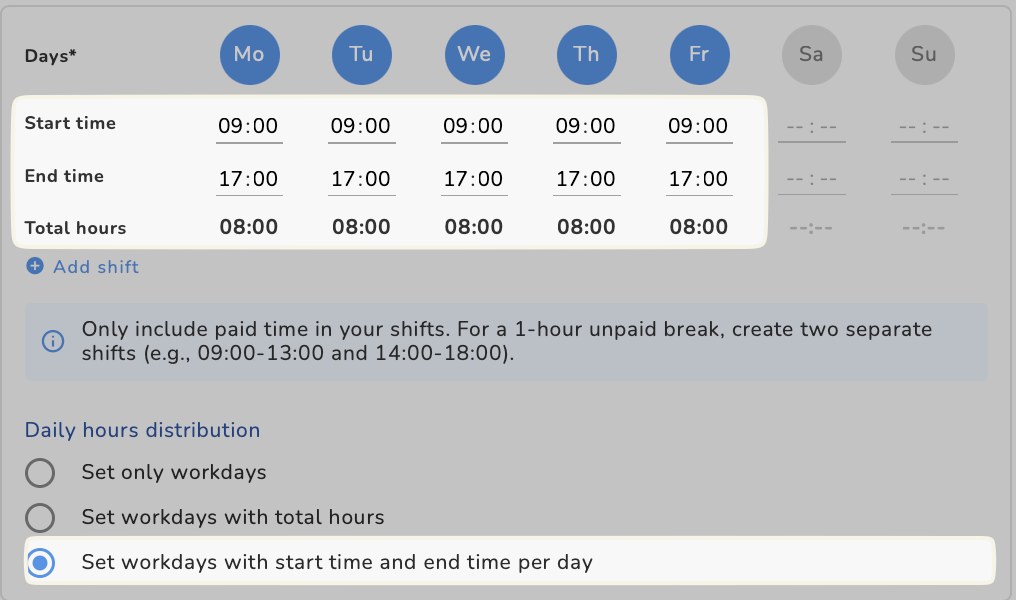
Option 2: Deduct the break from the daily total
Example:
8. Assign the Work Schedule to Employees
Assign employees during schedule creation
When creating a work schedule, you can directly select the employees who should use this schedule.
You can also assign work schedules later.
Open an Employee Profile.
Go to the tab Personal Profile.
Scroll down to the Work Schedule section.
Select ASSIGN WORK SCHEDULE.
Choose an effective date for the assignment.
Choose Assign a work schedule.
Click SAVE.