TABLE OF CONTENTS
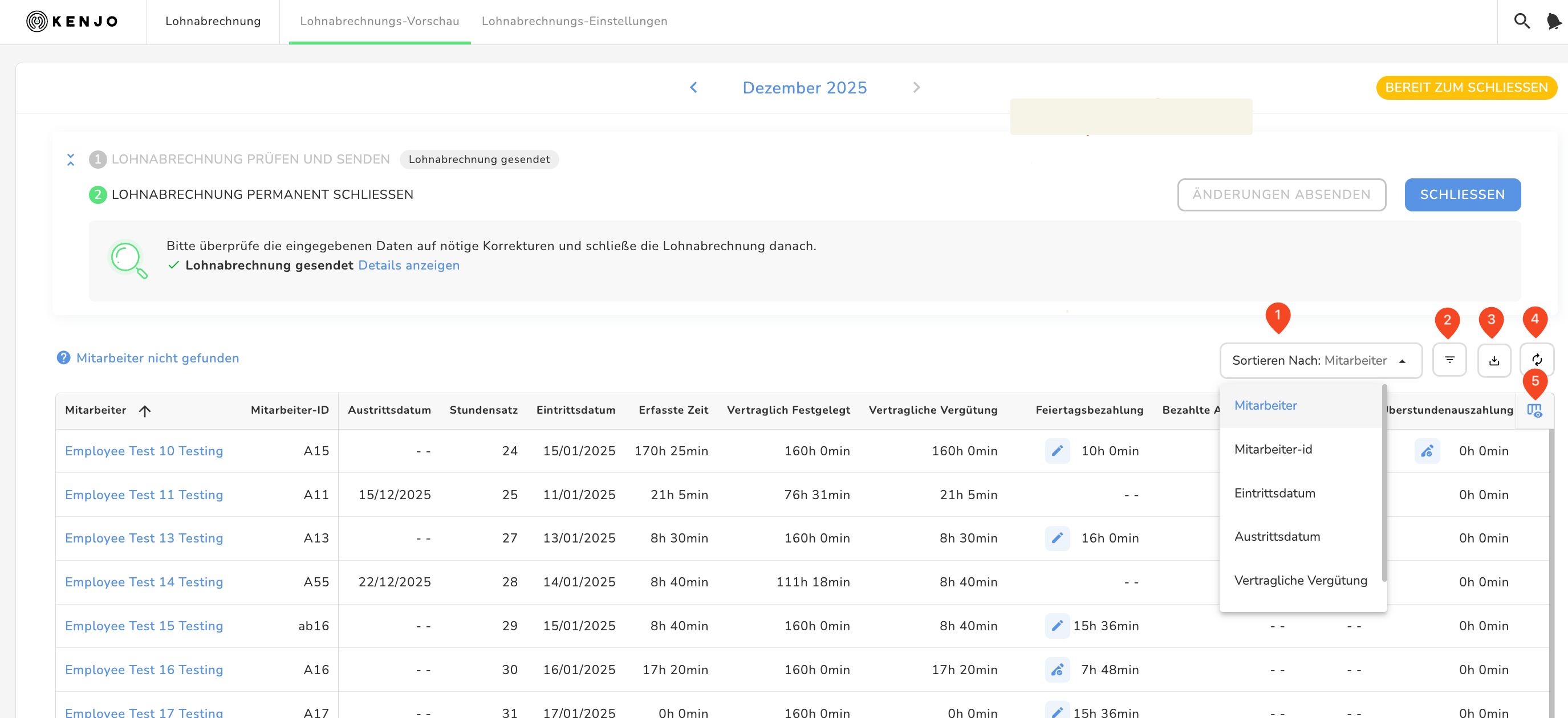
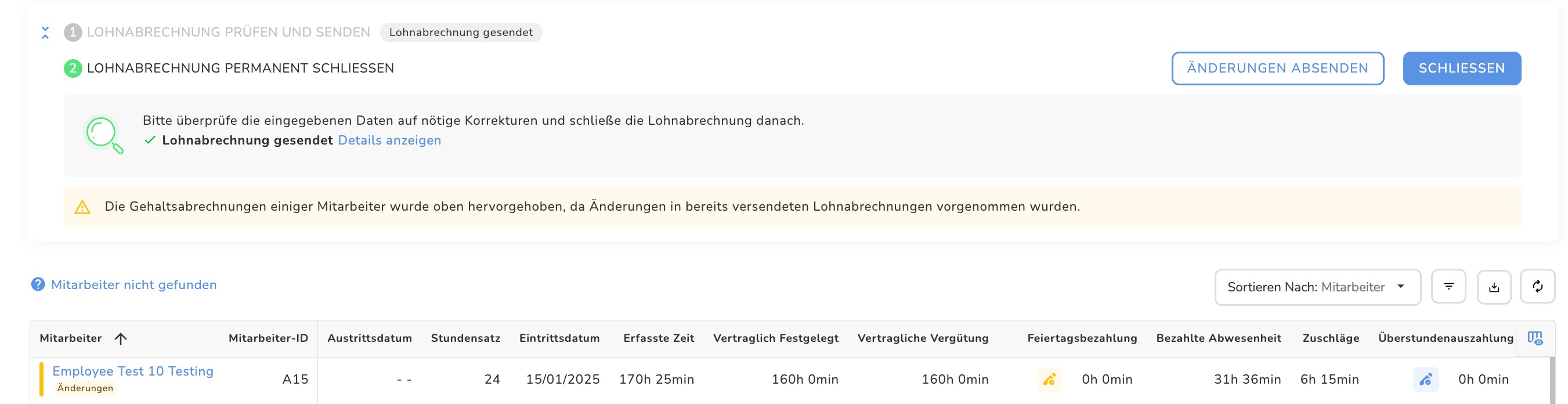
- 1 Sorting functions
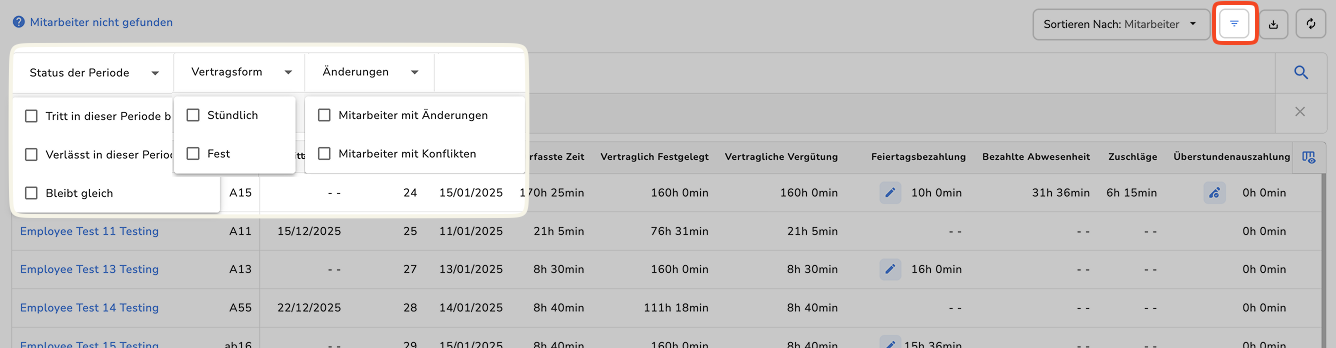
- 2 Filter function
- 3 Export function: You can export the payroll as a Excel file
- 4 Refresh: Click here to refresh your view
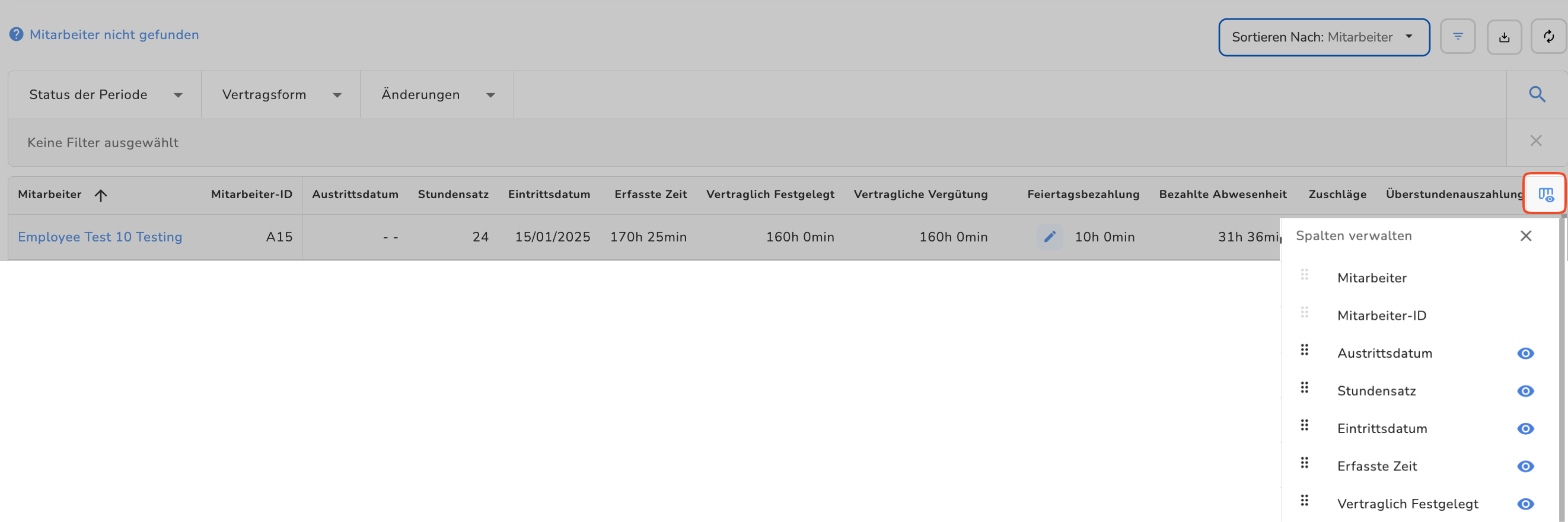
- 5 Manage columns:
- View and edit employee data
- Complete missing employee information
Info: The employee ID is now unique and contains no spaces. It is not possible to assign an employee ID that is already in use.
1 Sorting functions
- Go to Payroll > Payroll preview
- Click Sort by
- Select a column category to sort by, e.g. Employee ID
Sorting can be done alphabetically, numerically, or by date, depending on the category. You can sort in ascending order (smallest number first, A–Z, or earliest date) or descending order (largest number first, Z–A, or latest date).
2 Filter function
- Click the three-line icon
- You can filter by period status, contract type, or changes
3 Export function: You can export the payroll as a Excel file
4 Refresh: Click here to refresh your view
5 Manage columns:
- Hold a column and drag it up or down using drag & drop
- Click the eye icon to hide a column
View and edit employee data
- Click on an employee
- The side panel opens on the right — a new interface that allows you to view detailed data for a single employee
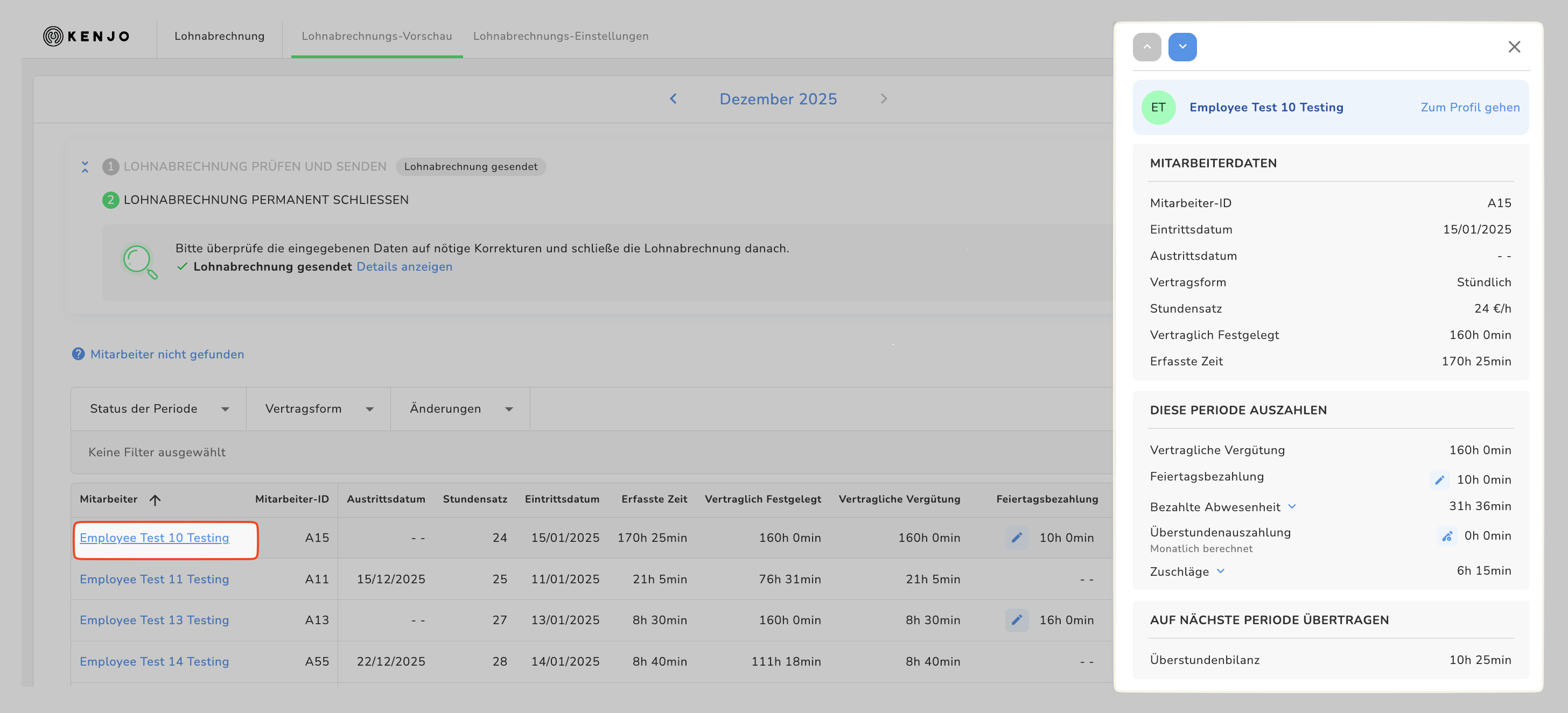
- From here, you can jump to the employee profile by clicking Go to profile
- From the employee profile, you can return by clicking BACK TO PAYROLL
- If you make changes to employee or payroll data after the payroll has already been sent, the changes will be highlighted in yellow
- Click SEND CHANGES to submit the updated payroll data
Complete missing employee information
If important employee information such as employee ID or hourly wage is missing for employees selected for payroll, an error message will be displayed in the payroll preview. You must (!) complete this information, otherwise you will not be able to submit payroll.
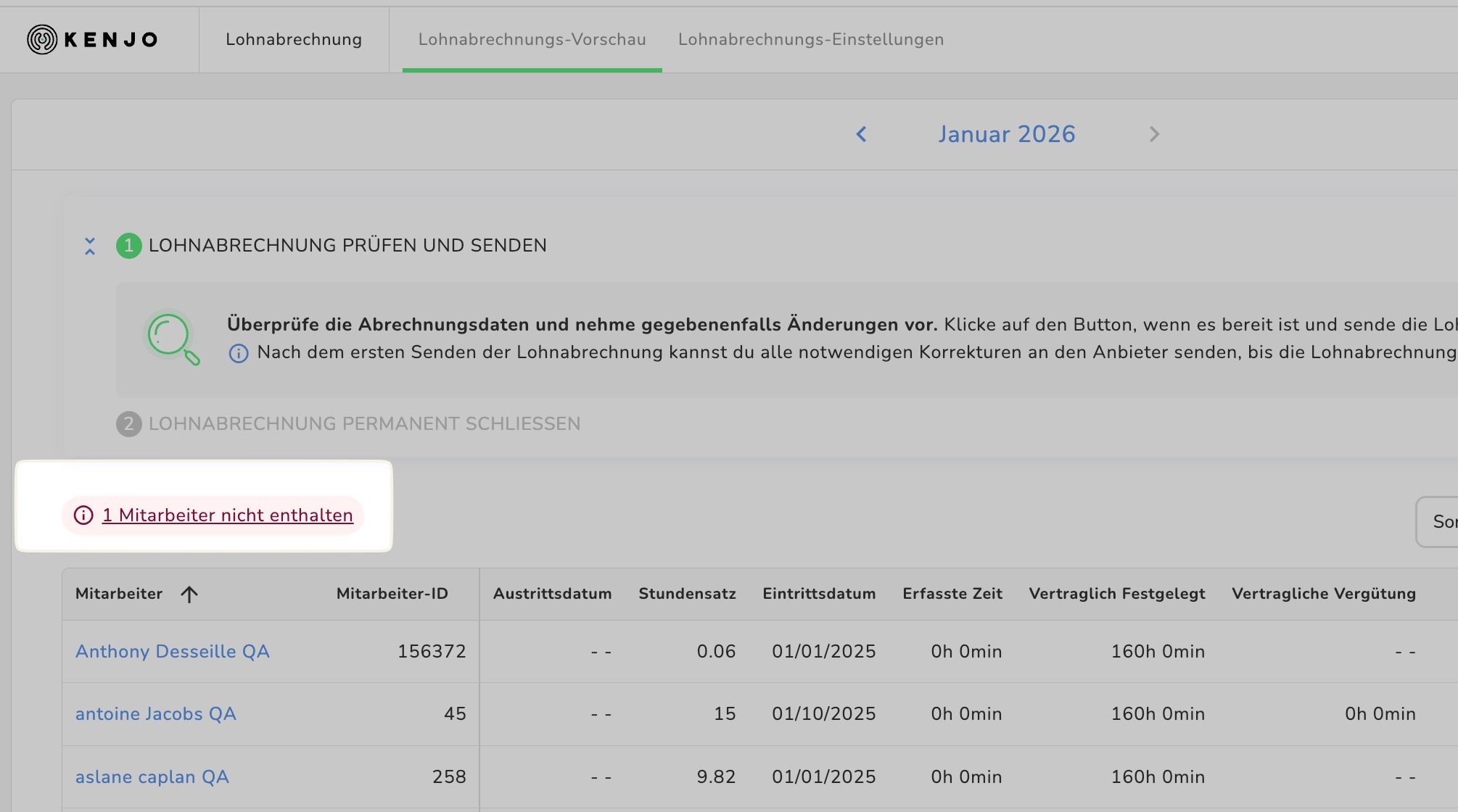
To complete missing information:
- Click on Employee not included
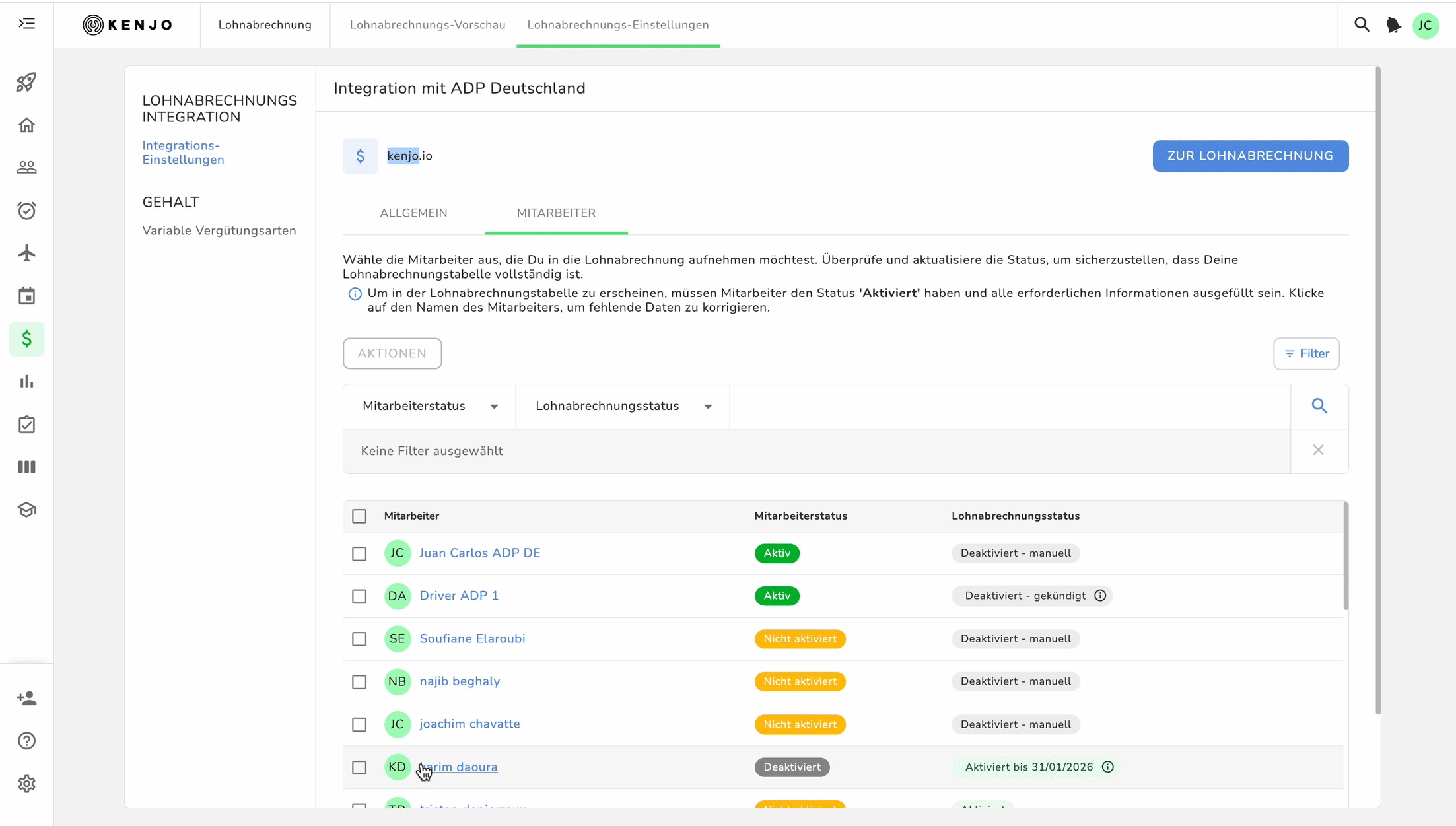
- Click on Go to settings
- Click on the employee’s name
- Complete the incomplete information in the right-hand pop-up window by clicking on the red highlighted field labeled Incomplete
- Click on SAVE
Was this article helpful?
That’s Great!
Thank you for your feedback
Sorry! We couldn't be helpful
Thank you for your feedback
Feedback sent
We appreciate your effort and will try to fix the article