Capacity planning helps you make sure you have enough people at the right time.
It compares:
- How many people you need (required shifts)
- How many people you have planned (assigned shifts)
Everything is shown in the capacity functionality in Shiftplan, so you can quickly see gaps or shortages and fix them — for example by assigning more people, adjusting shifts, or spreading work across different days.
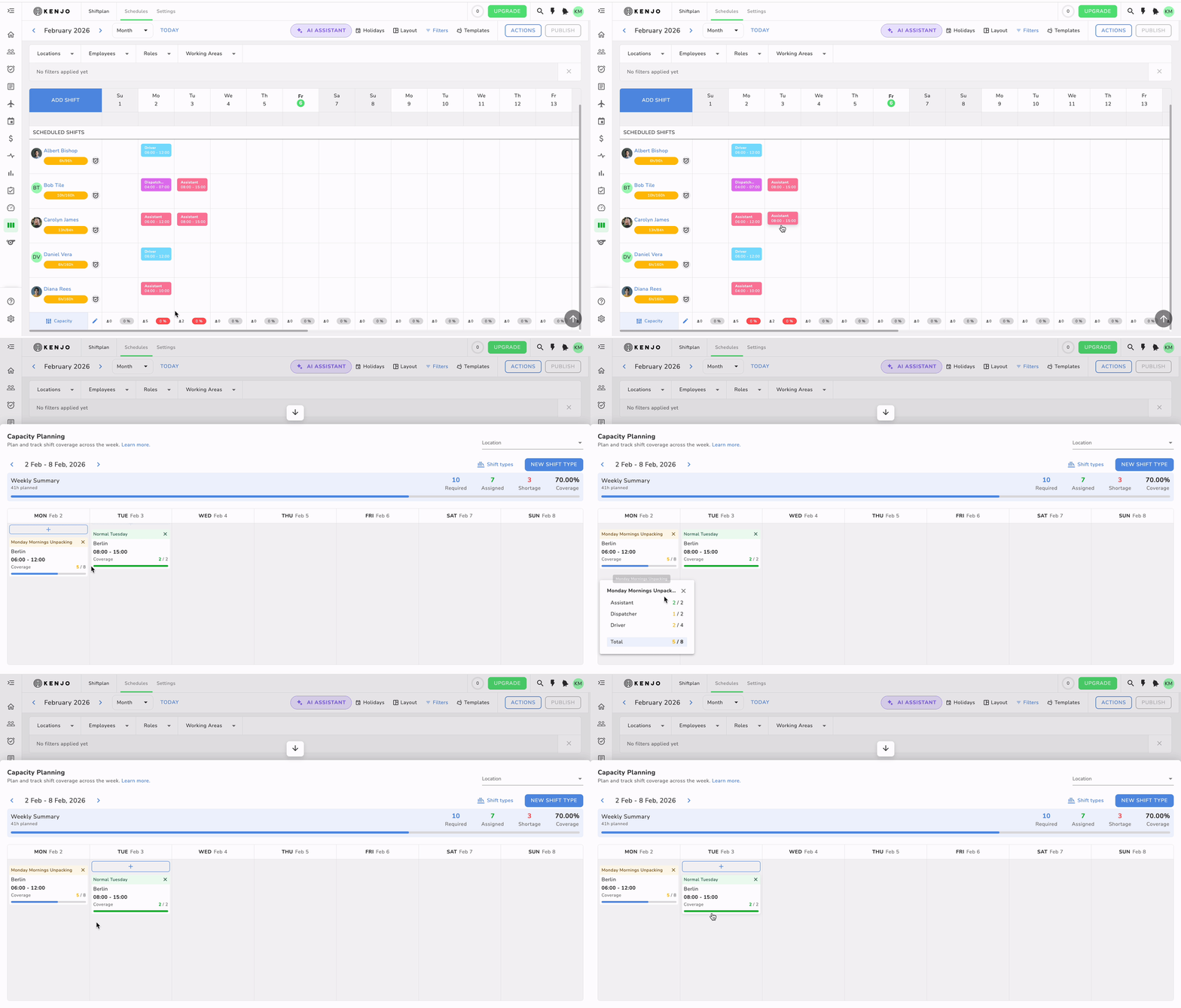
TABLE OF CONTENTS
- Enable capacity planning
- Plan a capacity
- Edit and manage a shift type/planned capacity
- Partial coverage of planned capacity
Enable capacity planning
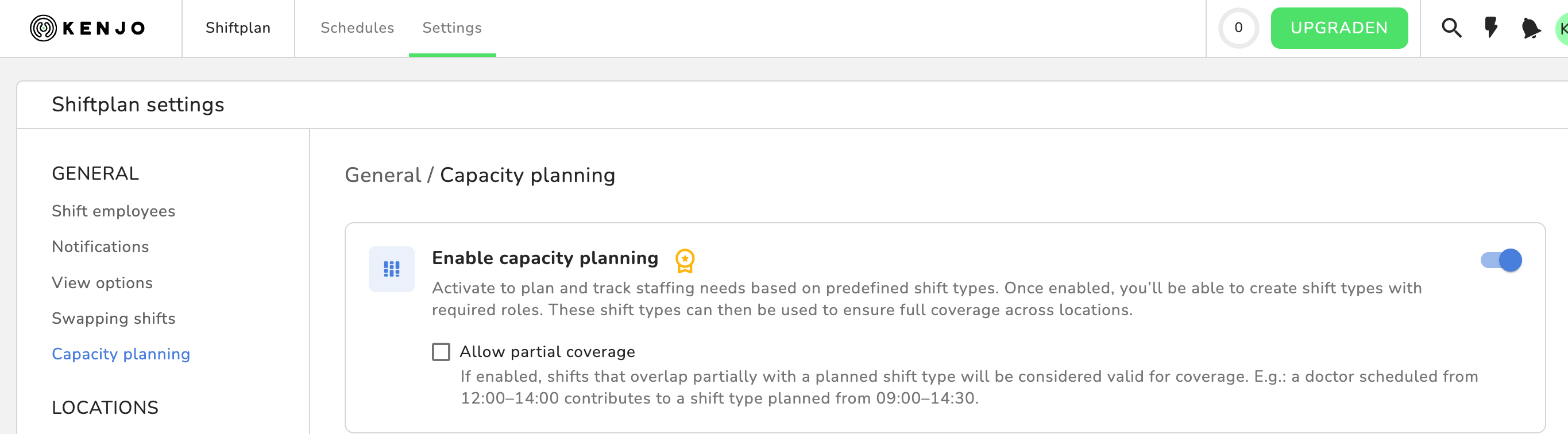
- Go to Shiftplan > Settings > Capacity Planning
- Check the box Allow partial coverage if you want shifts that don’t fully cover the defined period to still count as capacity met. This setting is recommended
Plan a capacity
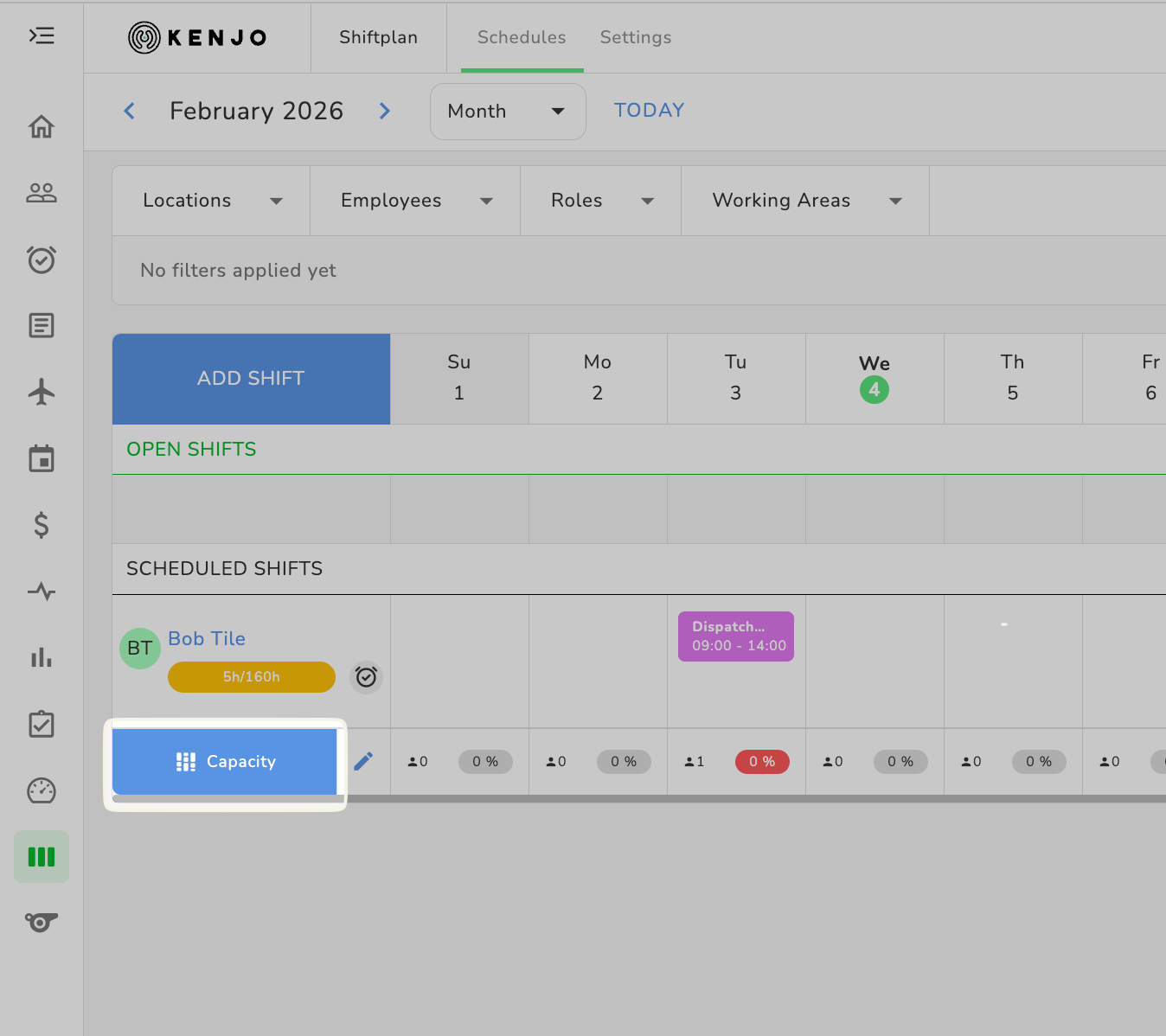
- Go to Schedules
- Find the capacity field outlined in blue in the left lower corner
 | You're the shift planner of your company and have a specific number of employees for every shift day you need. This is the capacity of employees with matching roles you need for a day. We plan the capacity for a Monday Morning Unpacking shift as an example now: |
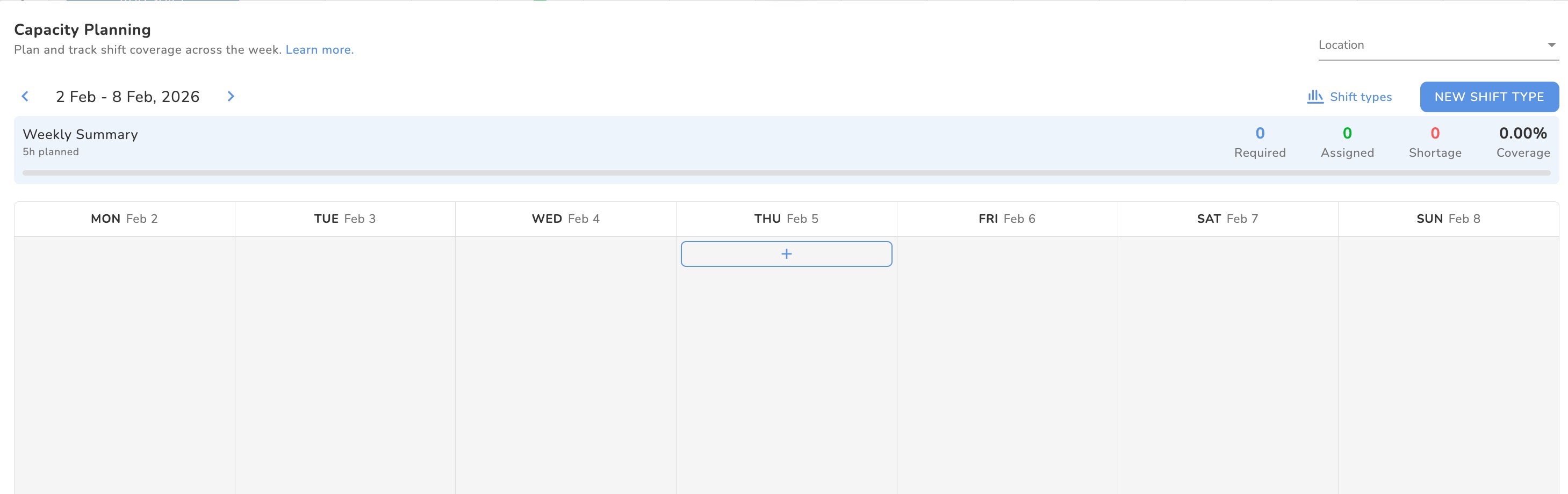
The displayed default week will be the current week. If you want to plan capacity for a different week use the blue arrows. In the very right corner you can filter bylocations to see capacity coverage for all locations.
- To add an existing shift type for a specific day, click the blue (+) on that day and check the box of the shift type you would like to apply
- To create a new NEW SHIFT TYPE click in the upper right corner
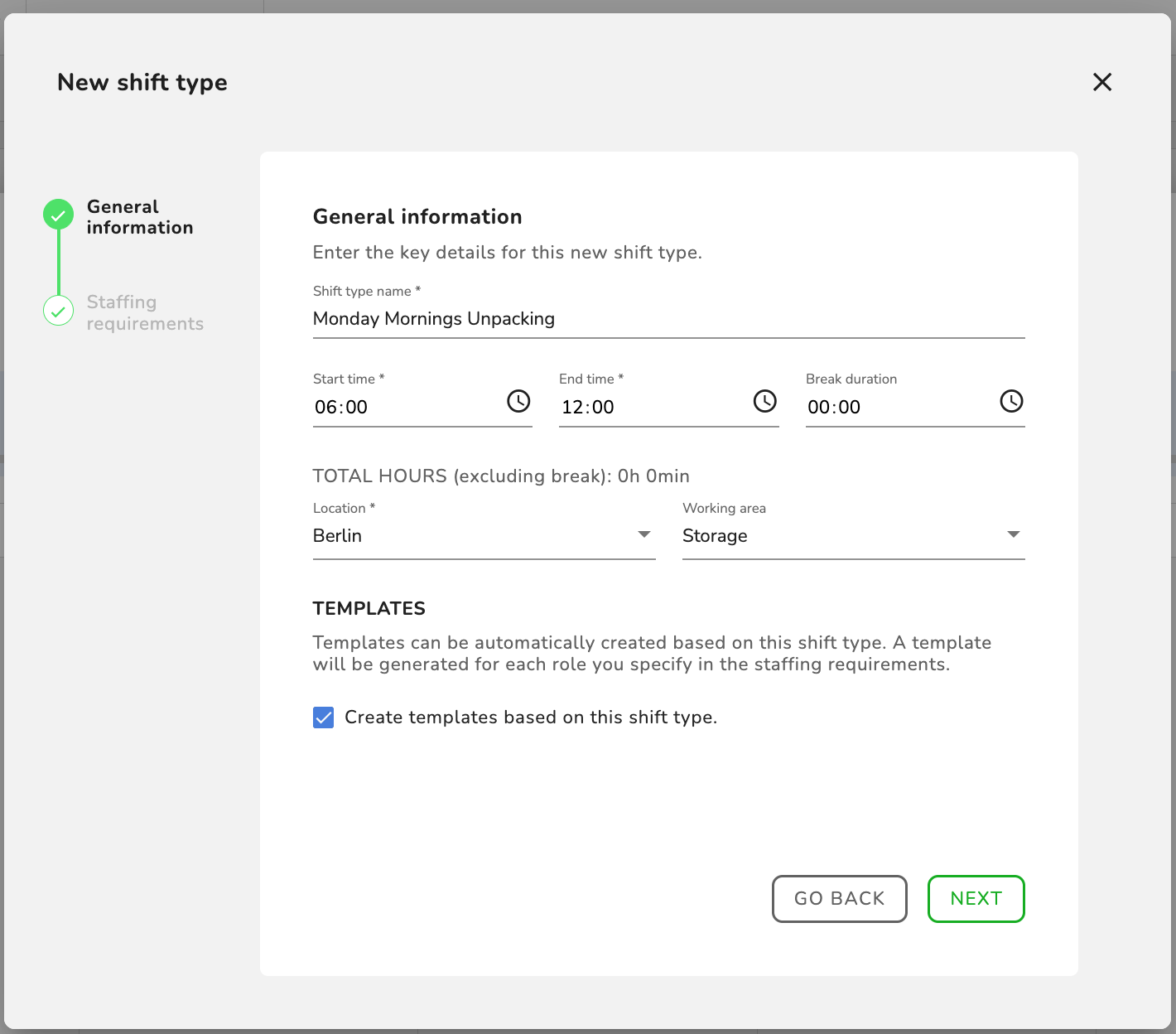
Fill in the General information:
- Shift type name: Give your shift type a unique name
- Start and End time and break duration
- Location and Working Area
- Check the box Create templates based on the shift: This is absolutely recommended to easily drag-and-drop the shifts for every role when you schedule the shift plan
(This will automatically create templates for you, for all the required roles at required locations and times)
- Click NEXT
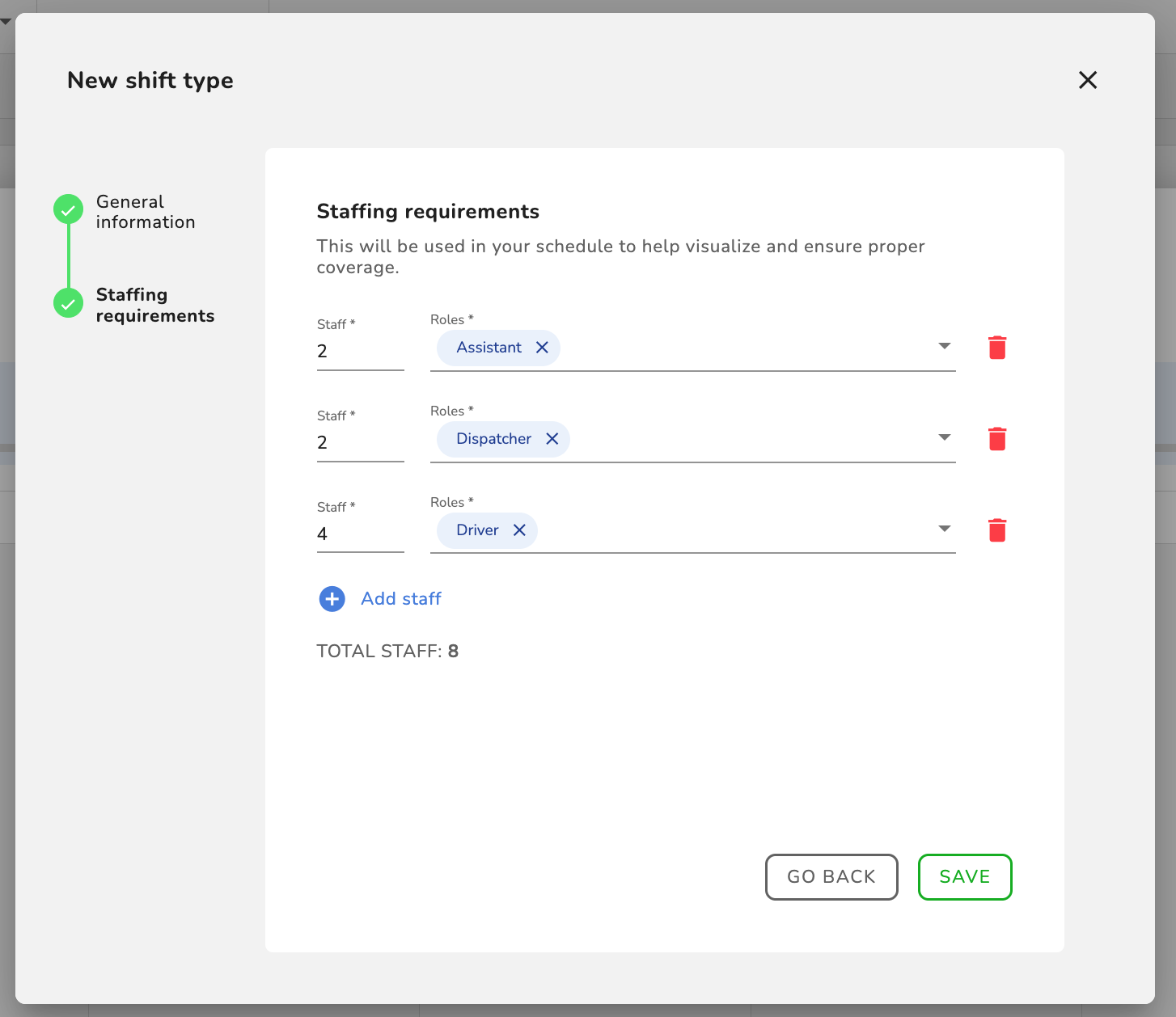
Fill in the Staffing requirements:
- Define the number of staff for each role needed
- Click the red trash-icon to delete one staffing requirement or click (+) add staff to create an additional requirement
- Click SAVE
Distribute shift types across days
Once you have created one or more shift types, you can distribute them across specific weekdays
- Click into the field of a selected weekday
- Select the shift type
- If needed, enter a repeat interval under Repeat on
- Under advanced options, you can optionally define a frequency and an end date for the repetition
- Click ADD
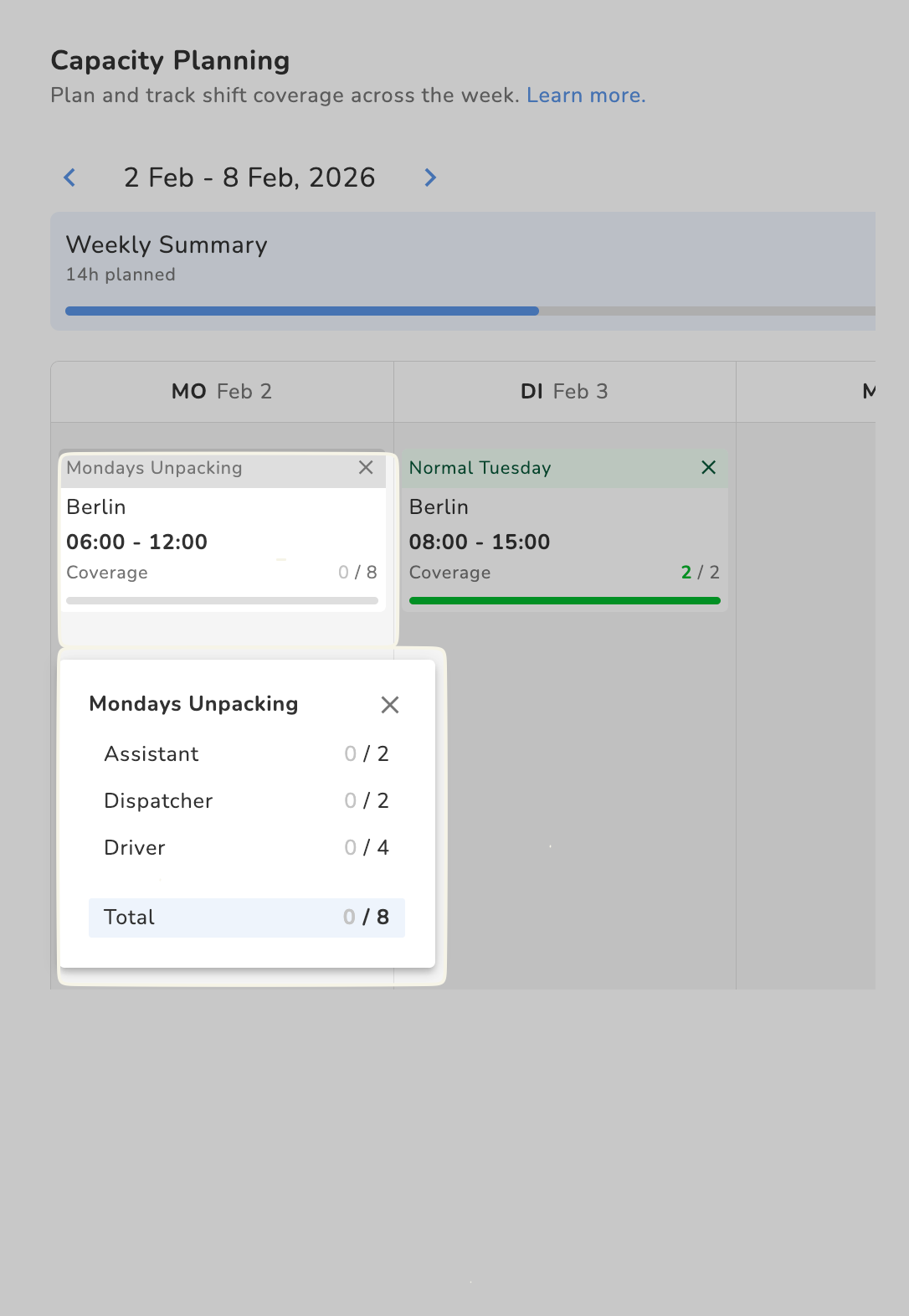
| Now you can find your planed capacity for the shift type Monday Mornings Unpacking and see that it's 0/8 Coverage of required staff, because we haven't published any shifts yet. We will do this now: |
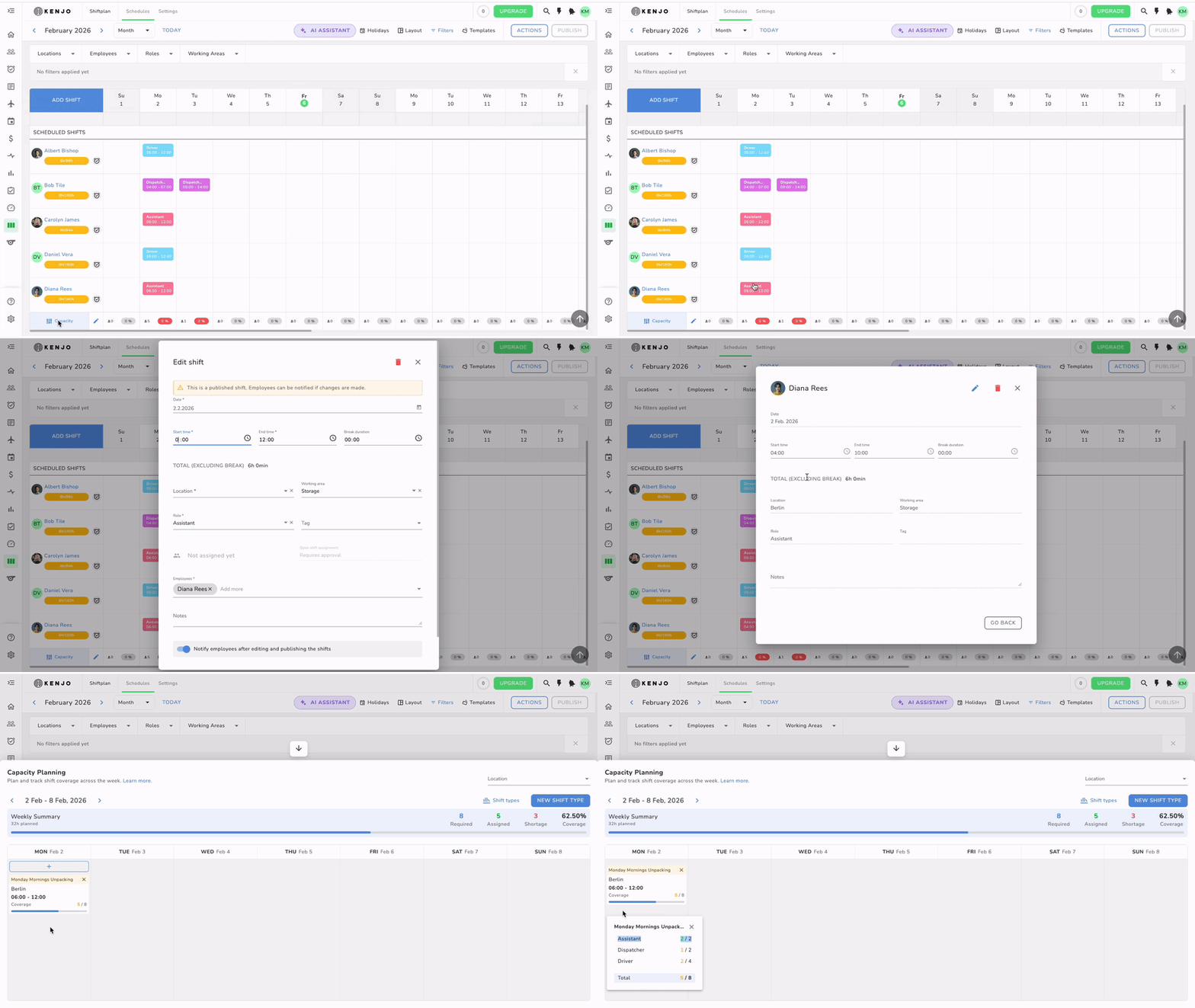
- Go to Schedules
- Click Templates to view the templates automatically created from your capacity plan
- They is a template for every role you planned.
- Drag-and-drop the templates to the designated employees that match the role
- Click PUBLISH
- Click Capacity
- View the so far planned coverage for your day. The color code shows how well your coverage is staffed: green means fully staffed, orange/yellow means partially staffed, and red means not staffed.
- In the upper right corner you see the number of required and assigned employees, the shortage number of employees and the coverage in percentage for the day selected.
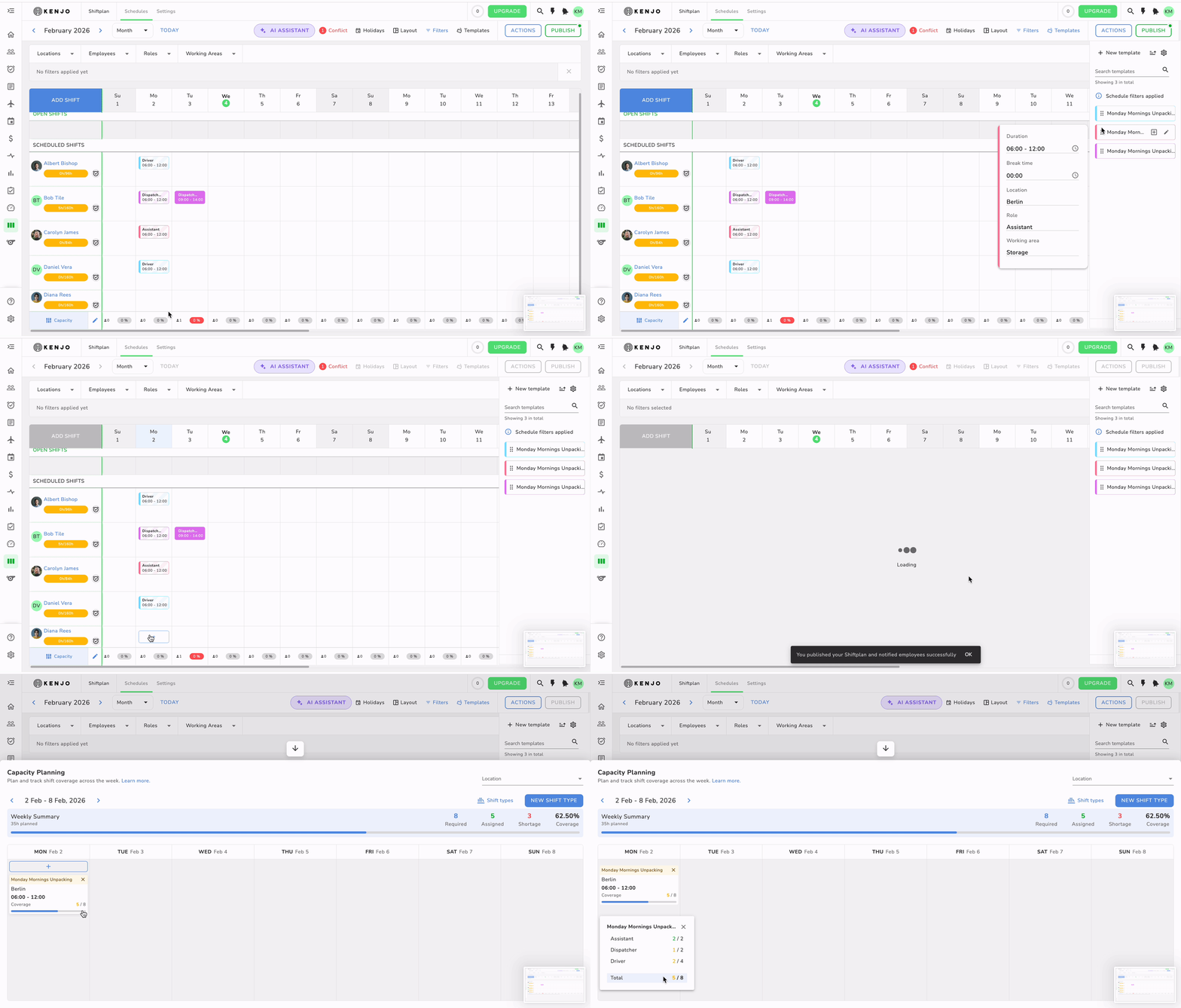
| In our example capacity plan, we defined three roles: Dispatcher, Driver, and Assistant - so three separate templates are created. When going to capacity we can see that we have only covered 5/8 staff of the planned staff so far. In the details you can see that we miss staff for Dispatcher and Driver, but are fully covered for Assistant. |
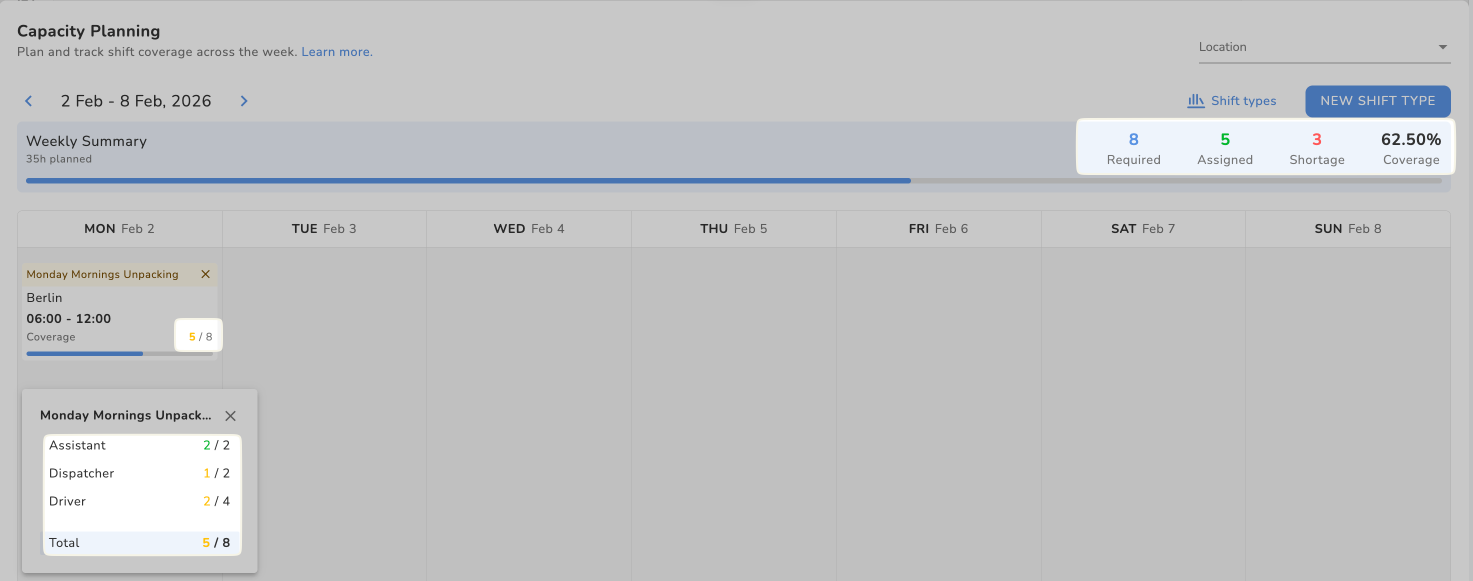
- Plan and publish more shifts to fill up your capacity for Monday Mornings Unpacking
Publish open capacity as open shifts
- Click on a capacity on a specific day
- Click publish as open shifts. All uncovered shifts for that day are now added as open shifts in the schedule
Edit and manage a shift type/planned capacity
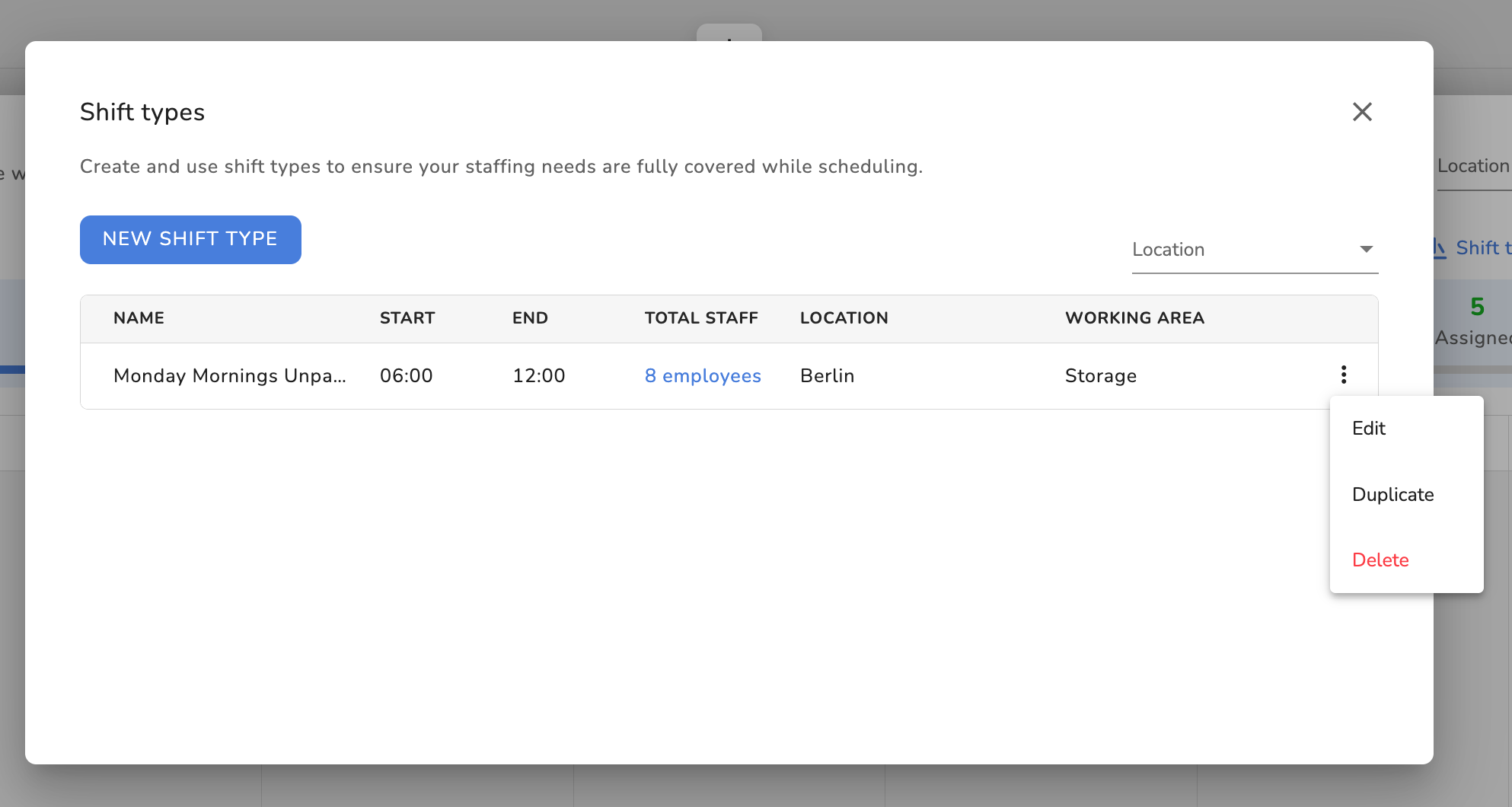
- Click Shift types to edit an existing shift type
- Click the three-dot-icon at the end of a line of a shift type
- According to your needs click Edit, Duplicate or Delete
Partial coverage of planned capacity
When you enabled partial coverage in the Capacity Planning Settings you can publish shifts that only partially match the planned time, and they will still count toward fulfilling the capacity plan and vice versa.
Shift type | Planned shift | If partial coverage is ON | If partial coverage is OFF |
| 9am - 12 pm | 9am- 11:30 am | counts as covered | Does not count as covered shift |
| 9am - 12 pm | 9.30am- 12 pm | counts as covered | Does not count as covered shift |
| 9am - 12 pm | 9.30am- 11:30 am | counts as covered | Does not count as covered shift |
Was this article helpful?
That’s Great!
Thank you for your feedback
Sorry! We couldn't be helpful
Thank you for your feedback
Feedback sent
We appreciate your effort and will try to fix the article