Now you can add a per-day expense amount in the employee profile, which Kenjo will then automatically calculate for every day the employee works more than 8 hours per day (including breaks) and store in payroll. You also have the option to manually adjust the days and amounts for expenses per employee in the payroll preview.
If an employee works 7 hours and 30 minutes per day and took a minimum of 30 minutes break time, the meal allowance will be generated for that day.Create a per diem allowance for employees
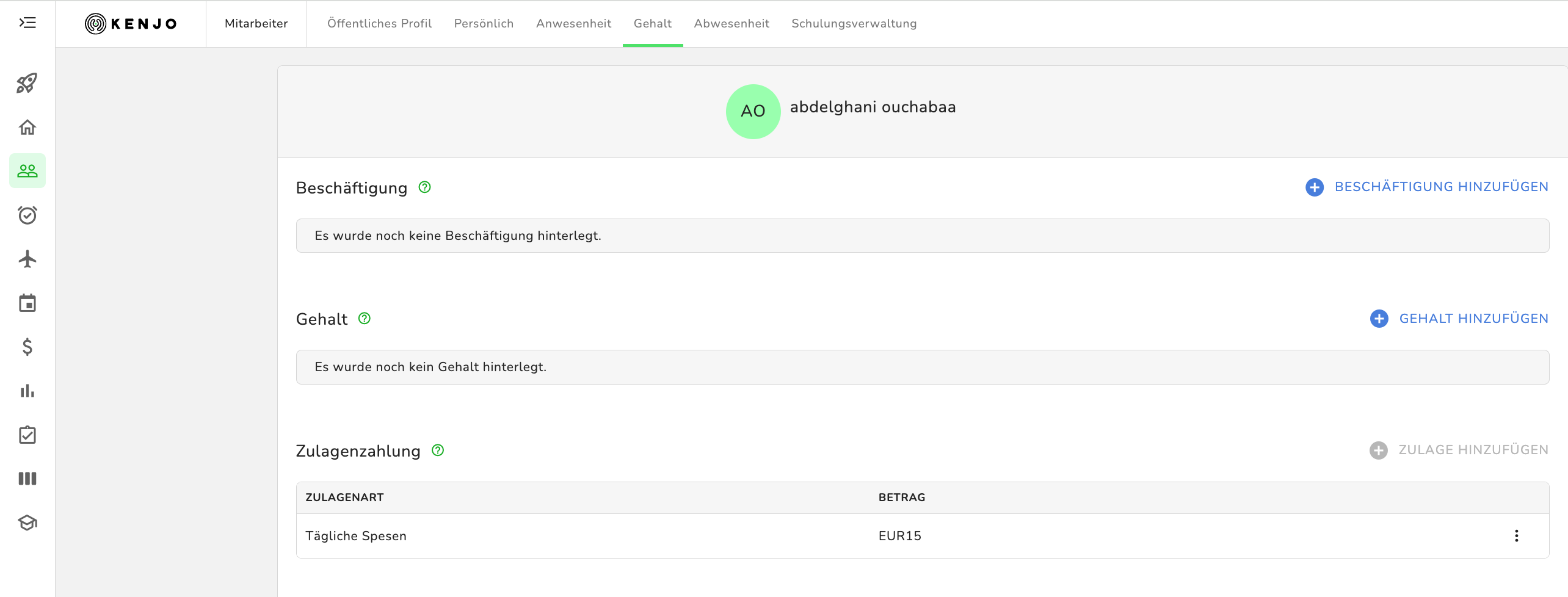
- Go to the employee profile of an employee
- Go to Salary in the horizontal menu
- Scroll down to Allowances
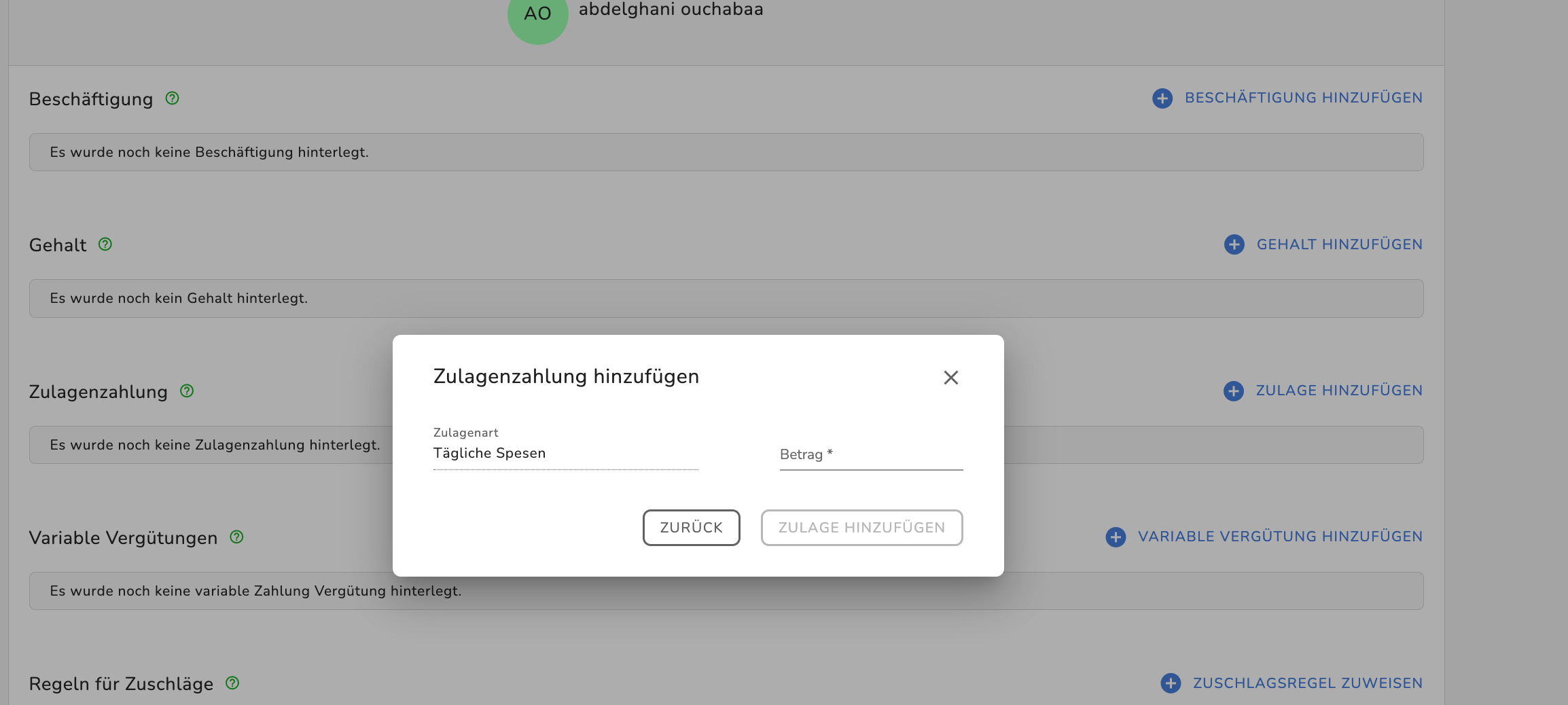
- Click on (+) Add allowance
- The allowance type Daily per diem is selected automatically
- Enter the daily amount* for the per diem
- To save, click ADD ALLOWANCE
Manage per diem allowances in payroll
Here you can see the usual overview of your monthly payroll, expanded with the Expenses column. You can either accept the automatically calculated per diem days based on your employees’ recorded working hours or manually overwrite this data.
Note how the automatic per diem calculation works. It multiplies all days on which an employee worked more than 8 hours by the amount of their stored per diem.
Example: Ahmad has a stored per diem of €14 per workday longer than 8 hours. In the payroll month he worked 4 days longer than 8 hours, so €14 × 4 days = €64 total
Manually edit automatically calculated per diem
- Go to the Payroll preview
- Find the Per diem column
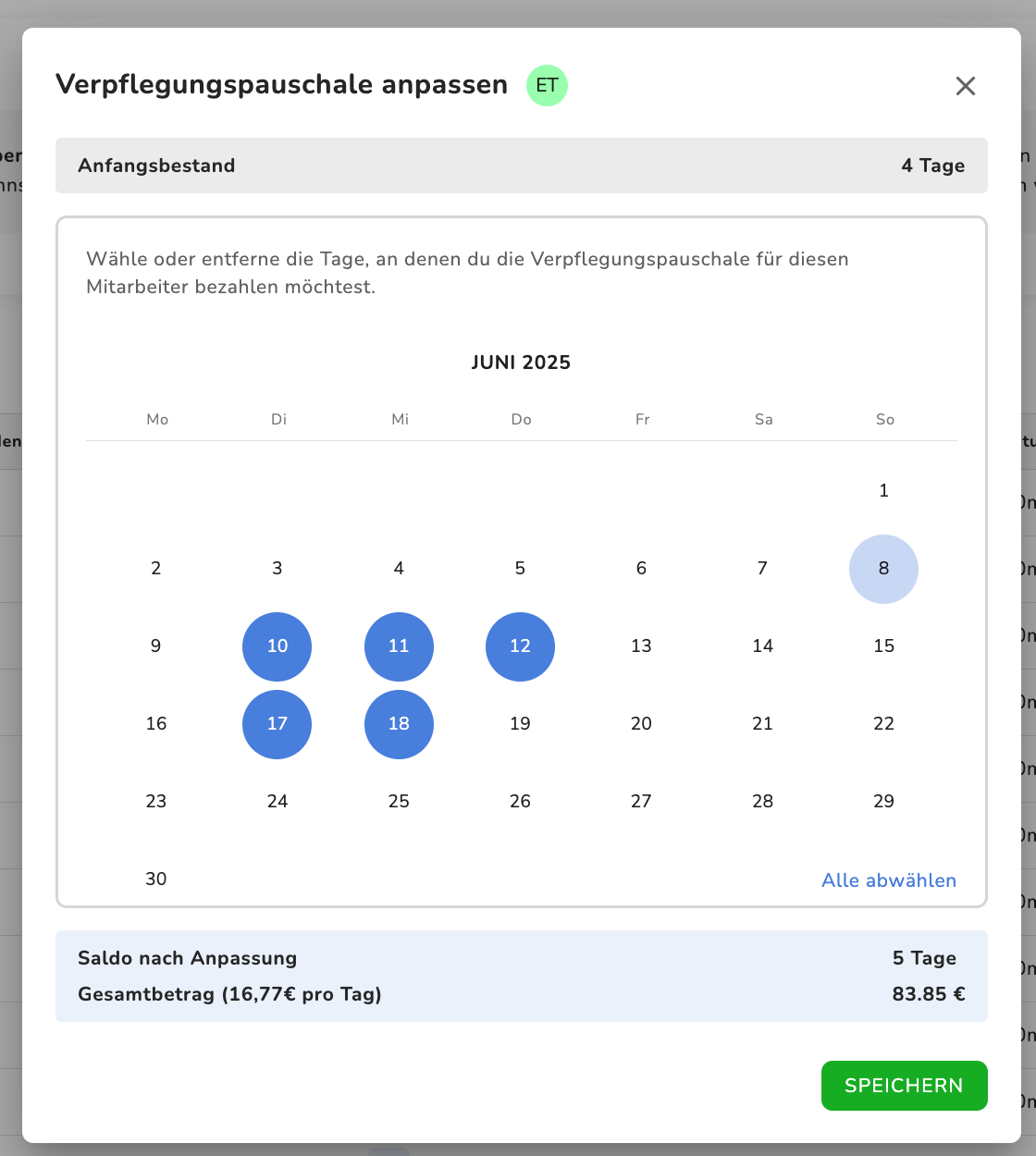
- Click the pencil icon to adjust the days for the per diem
- You can select or deselect all days of that month
- Click Save to apply your manual changes
The pencil icon without any additional symbol means this entry was automatically taken from recorded working hours. The pencil icon with an additional symbol indicates that you edited this entry manually.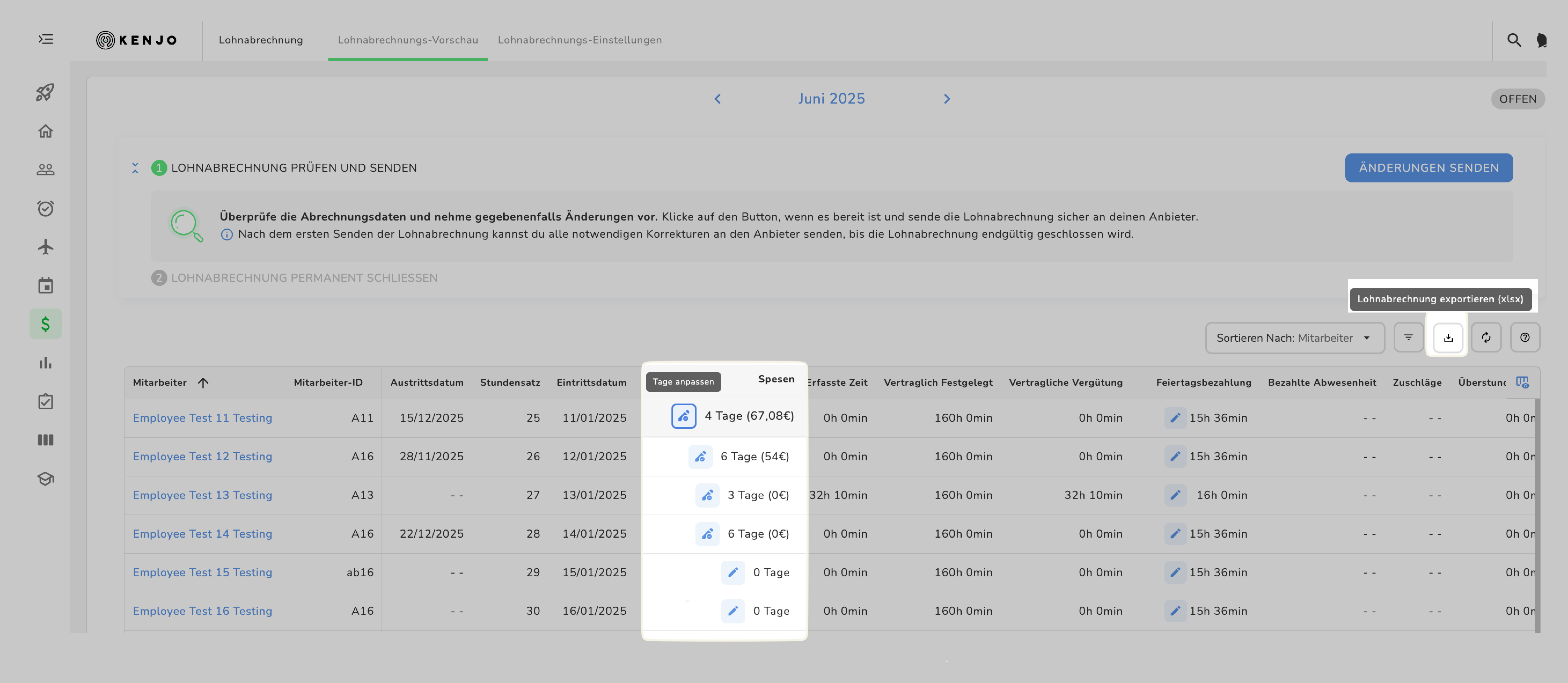
Automatically send per diem allowances as part of payroll to provider (ADP)
- Go to the Payroll preview
- Check all automatically created or manually edited per diem allowances
- Check all other data for this payroll period
- Click on SEND PAYROLL
The meal allowance is automatically sent to ADP as part of your payroll, you don’t need to do anything manually.
Manually send per diem allowances as part of payroll to provider (ADP) and (SDWorks)
- Go to the Payroll preview
- Check all automatically created or manually edited per diem allowances
- Click Export payroll (.xlsx) in the menu at the top right of the payroll preview
- Send this document manually to ADP
Was this article helpful?
That’s Great!
Thank you for your feedback
Sorry! We couldn't be helpful
Thank you for your feedback
Feedback sent
We appreciate your effort and will try to fix the article