This article explains how the system calculates working hours and how the Priority Chain determines the hours an employee must work each day.
1. Key Concepts and Their Purposes
To ensure effective management, it is essential to distinguish between these two concepts:
- Purpose of Scheduled Time: This is the tool for operational management and productivity tracking. It shows what is expected from the employee today according to the shiftplan.
- Purpose of Required Time: This constitutes the basis for payroll and legal contract compliance.
2. Hours Summary
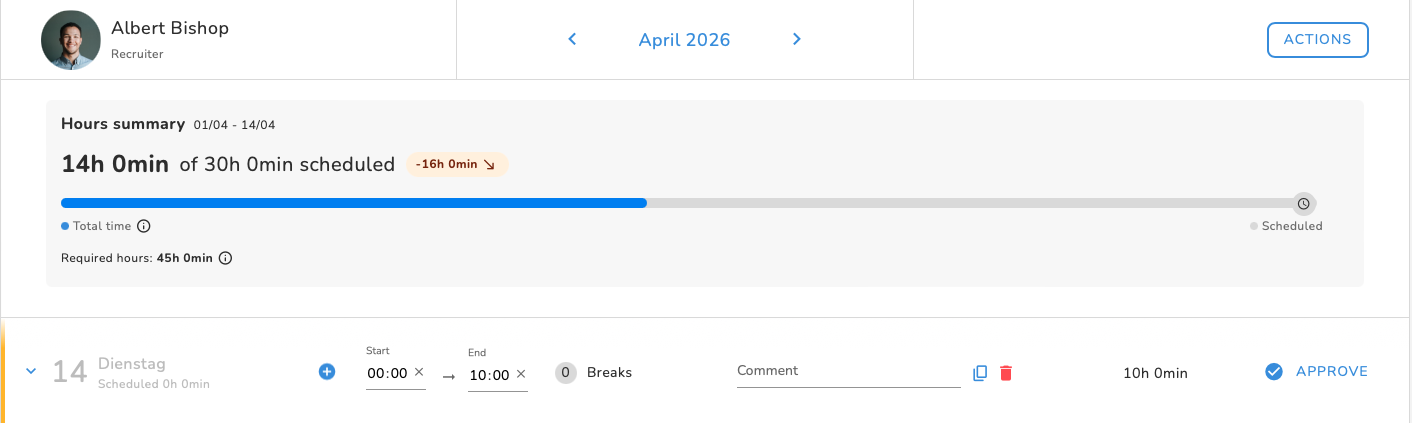
The main panel highlights each employee's adherence to the plan through a visual bar.
- Total Time (Blue Bar): This is the total paid hours accumulated to date. It includes: Tracked hours + Paid time off + Paid public holidays.
- Scheduled Time (Goal Line): Indicates how many hours have been scheduled up to the current date.
- Balance (Chip): Indicates whether there is a time surplus (more hours worked than scheduled) or a time deficit.
- Required Hours (Bottom Left): Net accumulated contractual hours (Contract hours − Time offs − Public Holidays).
3. Practical Example
For an employee with a 40-hour weekly contract, 5 working days, and no active Shift Plan:
- Daily average: 8 hours (40 / 5).
- On the 23rd of the month: The accumulated Scheduled Time will be 17 working days × 8h = 136h.
- If there were 2 public holidays: The Required Time will be 136h − (2 × 8h) = 120h.
4. The Priority Chain: How Does the System Decide?
The system uses a strict hierarchy to determine the Scheduled Time, looking for information in this specific order:
- Shift Plan (Highest Priority): If the employee has shift management activated, the system will only look at published shifts in the shiftplan.
- Work Schedule: If there is no shift management, the system will use the hour distribution defined in their regular work schedule.
- Contract (Fallback): If neither of the above exists, it will divide the weekly contract hours by the working days to obtain a daily average.
5. How to Activate Shift Plan Management
To have an employee managed by the shift plan instead of a fixed schedule, follow these steps:
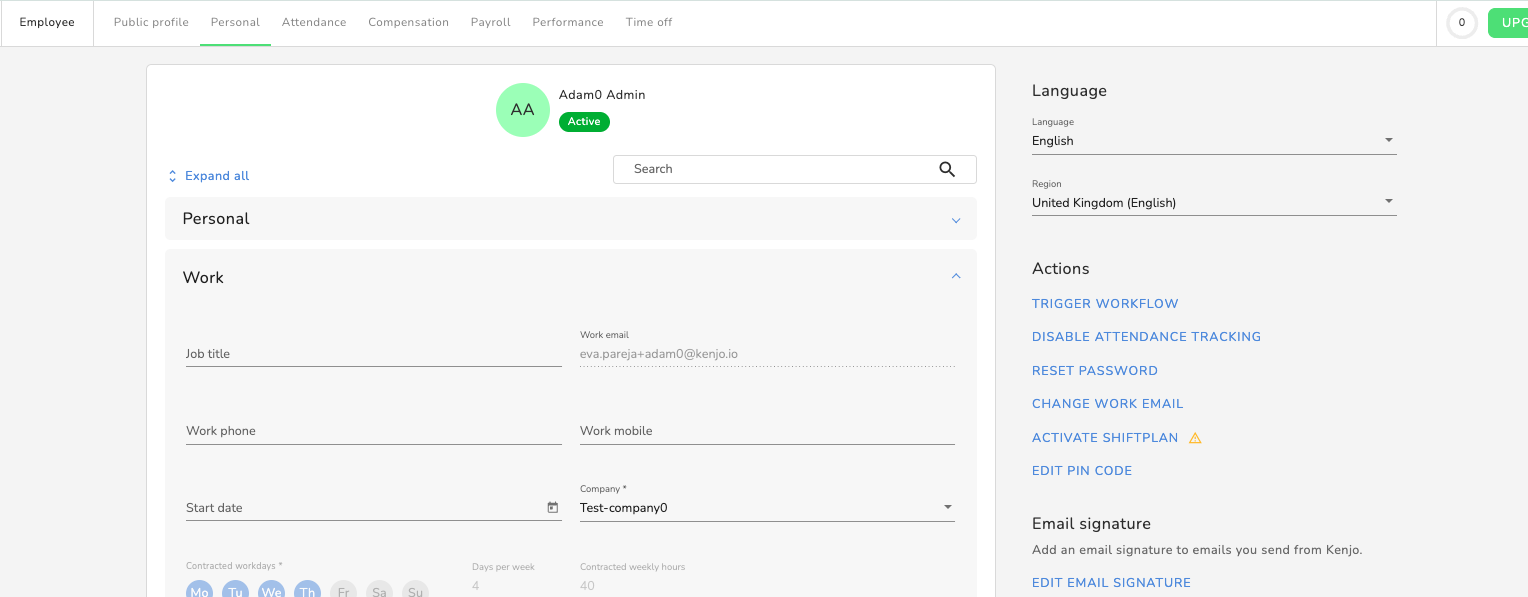
- Go to the Employee Profile > Personal tab.
- Look for Activate shiftplan in the right-hand side menu.
- Toggle on Activate shiftplan for the employee.
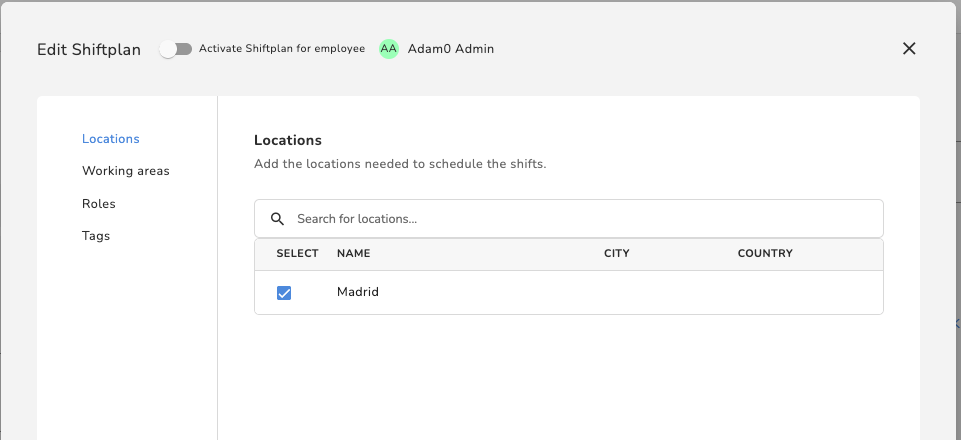
⚠ Important: Once activated, if there is no published shift for the employee, their scheduled Time will be 0h. The system understands that if they are not in the plan, they are not expected to work.
6. Overtime Tracking Active
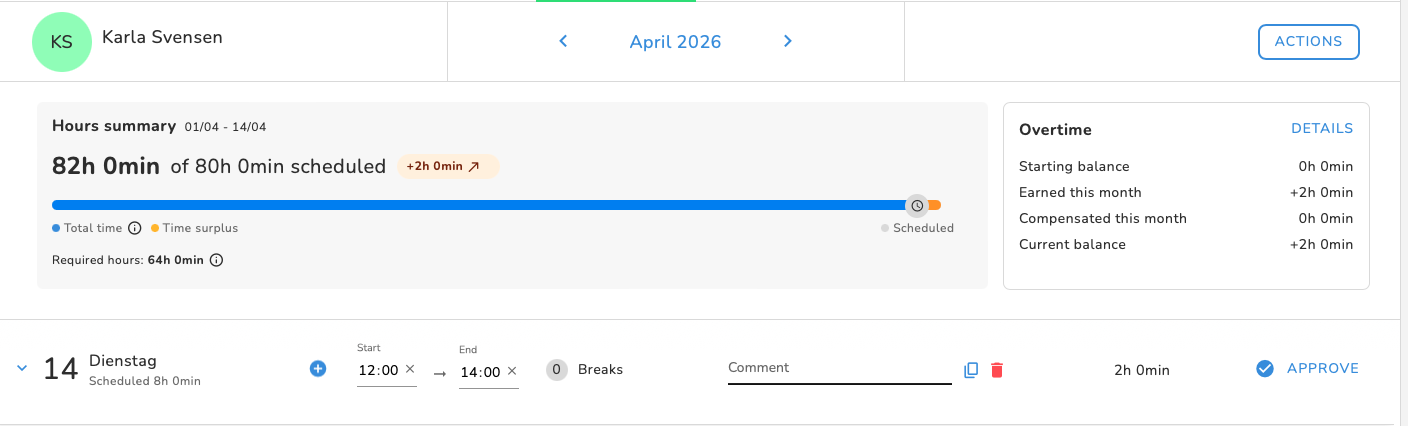
If employees work with fixed and regular target hours and have overtime tracking enabled, their overview will look slightly different: on the right side, an additional overtime summary is displayed, while all other values remain the same.
7. Daily View
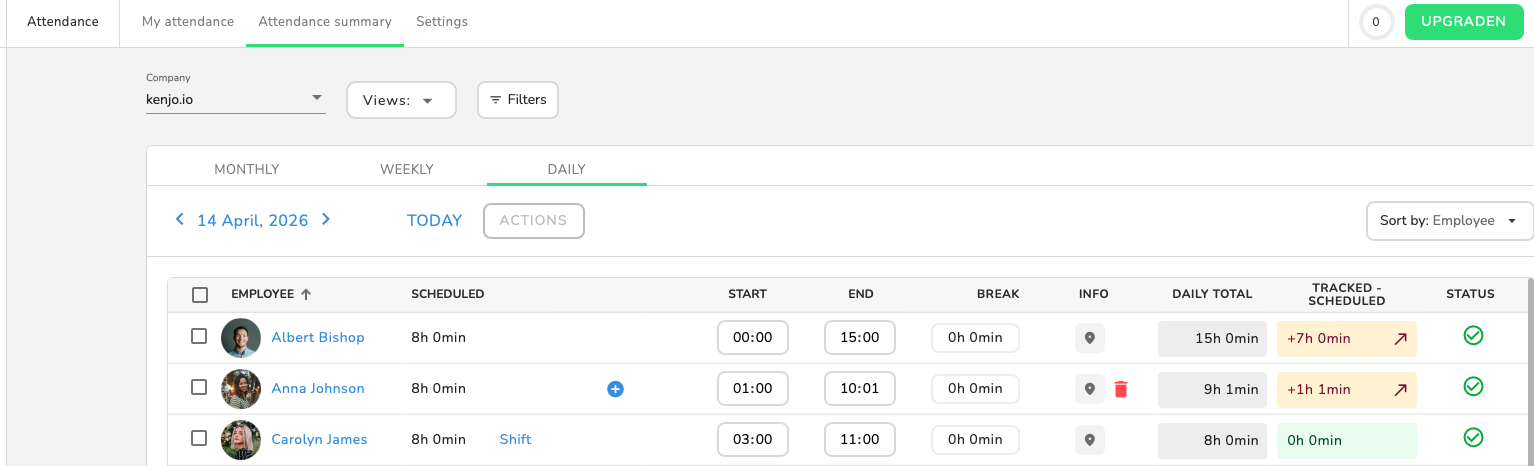
The daily attendance view can be used by admins as a dashboard.
- Go to Attendance > Attendance Summary > Daily
Here you can see all employees with their:
- Actual tracked start and end times
- Breaks
- Optional geolocation information
- Total accumulated time for the day
- The difference between tracked and scheduled hours, indicating whether more or fewer hours were worked than planned (time surplus or time deficit)
Was this article helpful?
That’s Great!
Thank you for your feedback
Sorry! We couldn't be helpful
Thank you for your feedback
Feedback sent
We appreciate your effort and will try to fix the article